
Hi, I’m Shichinomiya-san (@shichinomiya_s).
In this article, I’ll explain how to delete the “nul” file that occasionally gets created when using Claude Code on Windows.
Claude Code is an incredibly useful tool, but when using it on Windows, you may encounter some peculiar issues. One of them is the “nul” file problem that I’ll be covering today.
The Mysterious “nul” File
Have you ever noticed a file like this appearing in your directory while using Claude Code on Windows?

This “nul” file shows up in your directory even though you never created it yourself.
This file is occasionally created by mistake when Claude Code performs file operations. The name “NUL” is actually one of the reserved device names in Windows.
Windows has the following reserved device names:
- CON (Console)
- PRN (Printer)
- AUX (Auxiliary device)
- NUL (Null device, similar to /dev/null)
- COM1-COM9 (Serial ports)
- LPT1-LPT9 (Parallel ports)
These names have been reserved for backward compatibility since the MS-DOS era and are not intended to be used as regular file names. This is why things get a bit tricky when such a file is accidentally created.
You Can’t Delete It Normally
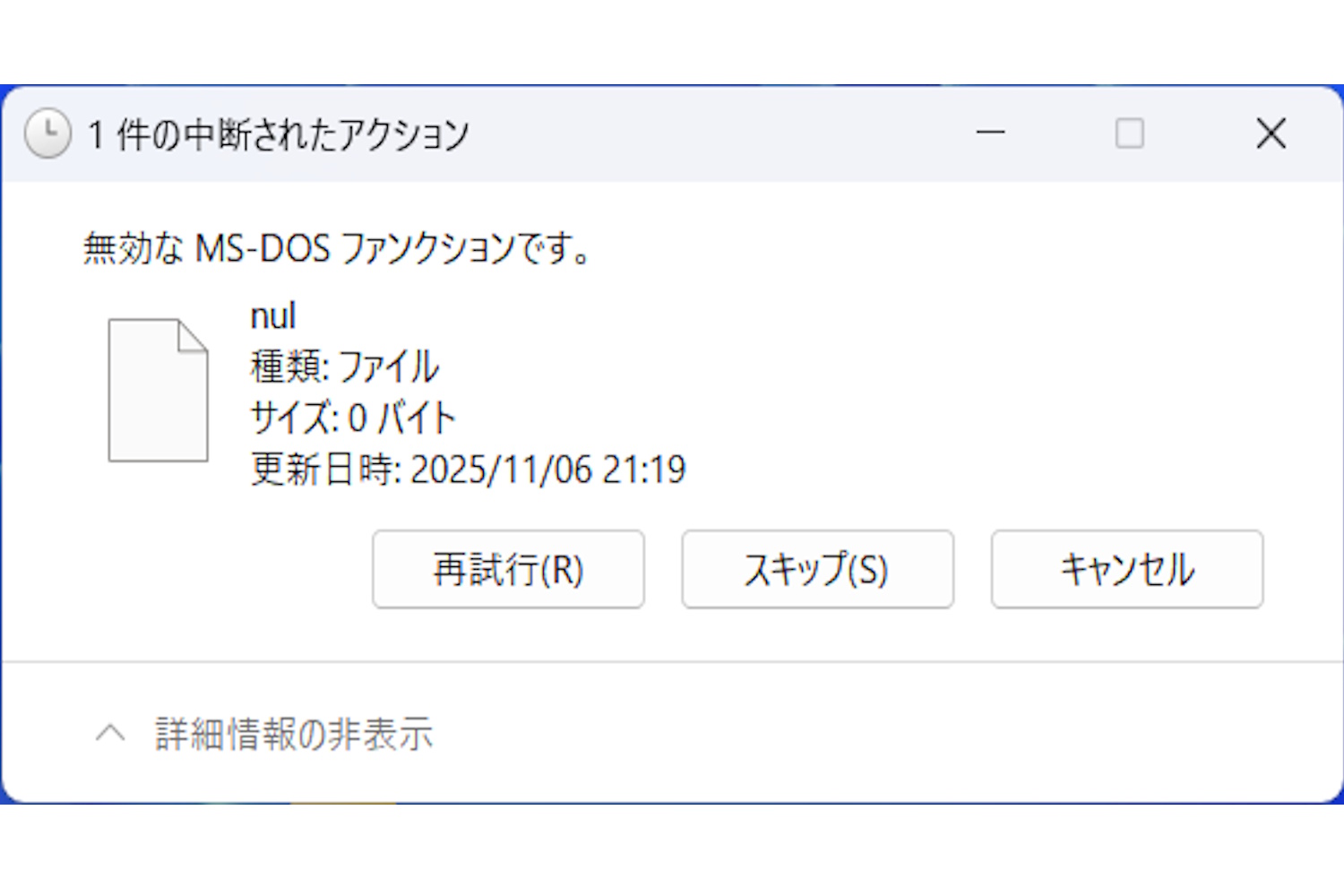
When you try to delete it normally, you’ll get an error message saying “Invalid MS-DOS function” and the deletion fails.

Whether you right-click and select delete in Explorer, press the Delete key, or run del nul in Command Prompt, you’ll encounter this error. The file simply won’t delete.
This happens because Windows tries to interpret “nul” as a device rather than a file.
How to Delete It
So how can we delete this troublesome file?
The answer is to use the UNC path format. Run the following command in Command Prompt or PowerShell:
del "\\?\C:\path\to\nul"For example, if the “nul” file is in the C:\Users\Username\Projects directory, run the following:
del "\\?\C:\Users\Username\Projects\nul"The \\?\ prefix tells Windows to “handle this path as-is without any special interpretation.” This bypasses the reserved device name check and allows you to delete the file normally.
If you’re using PowerShell, you can also use the following command:
Remove-Item -LiteralPath "\\?\C:\path\to\nul"
Conclusion
In this article, I covered how to delete the “nul” file that occasionally appears when using Claude Code on Windows.
This issue is specific to Windows and doesn’t occur on macOS or Linux. While we hope for a fix on the Claude Code side in the future, this workaround should help you deal with the problem in the meantime.
I hope this helps anyone who’s been struggling with the same issue.
See you in the next article!
