
Hi, I’m Shichinomiya-san (@shichinomiya_s).
GLIBC_2.28 not found” error.Background: When the Error Occurred
After installing Node.js 20.9.0 on Ubuntu 16.04 LTS (x86_64), the following error appeared:
root@server:/# node -v
node: /lib/x86_64-linux-gnu/libm.so.6: version `GLIBC_2.27' not found (required by node)
node: /lib/x86_64-linux-gnu/libc.so.6: version `GLIBC_2.28' not found (required by node)
node: /lib/x86_64-linux-gnu/libc.so.6: version `GLIBC_2.25' not found (required by node)
Because the system was missing the GLIBC versions required by the Node.js binary, even a simple “node -v” command wouldn’t work.
What is GLIBC?
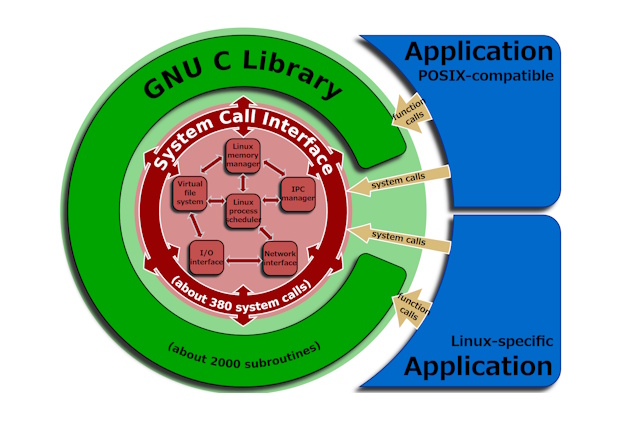
GLIBC (GNU C Library) is the foundational library that provides essential functions for memory management, file operations, network communication, process management, and mathematical calculations on Linux and many other operating systems.
Since it serves as the foundation for programs to run correctly, version mismatches can cause significant problems.
Steps to Resolve the Issue
By installing GLIBC 2.28, we can leverage backward compatibility to resolve the GLIBC_2.25 and GLIBC_2.27 errors at the same time.
Step 1: Update and Install Required Build Packages
apt-get update
apt-get install -y wget perl gcc make
apt-get install -y gawk bison
Step 2: Download and Extract GLIBC 2.28
cd /tmp
wget https://ftp.gnu.org/gnu/glibc/glibc-2.28.tar.gz
tar -xf glibc-2.28.tar.gz
Step 3: Create a Build Directory
mkdir -p ./glibc-build && cd ./glibc-buildStep 4: Build and Install GLIBC
../glibc-2.28/configure --prefix=/opt/glibc-2.28
make && make install
Step 5: Verify the Installation
ls -la /opt/glibc-2.28

# Example output:
total 40
drwxr-xr-x 10 root root 4096 Nov 6 13:15 .
drwxr-xr-x 1 root root 4096 Nov 6 13:15 ..
drwxr-xr-x 2 root root 4096 Nov 6 13:15 bin
drwxr-xr-x 2 root root 4096 Nov 6 13:15 etc
drwxr-xr-x 21 root root 4096 Nov 6 13:15 include
drwxr-xr-x 4 root root 4096 Nov 6 13:15 lib
drwxr-xr-x 3 root root 4096 Nov 6 13:15 libexec
drwxr-xr-x 2 root root 4096 Nov 6 13:15 sbin
drwxr-xr-x 4 root root 4096 Nov 6 13:15 share
drwxr-xr-x 3 root root 4096 Nov 6 13:15 var
Step 6: Install patchelf and Locate the Node Binary
apt install -y patchelf
command -v node

# Example output:
# /root/.nvm/versions/node/v20.9.0/bin/node
Step 7: Verify the Node Binary is in ELF Format
file {path to your Node binary from the previous step}

# Example output:
# /root/.nvm/versions/node/v20.9.0/bin/node: ELF 64-bit LSB executable, x86-64, version 1 (GNU/Linux), dynamically linked, interpreter /lib64/ld-linux-x86-64.so.2, BuildID[sha1]=..., for GNU/Linux 3.2.0, not stripped, too many notes (256)
Step 8: Relink the Node Binary with patchelf
patchelf --set-interpreter /opt/glibc-2.28/lib/ld-linux-x86-64.so.2 --set-rpath /opt/glibc-2.28/lib/:/lib/x86_64-linux-gnu/:/usr/lib/x86_64-linux-gnu/ {path to your Node binary}

# Example:
# patchelf --set-interpreter /opt/glibc-2.28/lib/ld-linux-x86-64.so.2 --set-rpath /opt/glibc-2.28/lib/:/lib/x86_64-linux-gnu/:/usr/lib/x86_64-linux-gnu/ /root/.nvm/versions/node/v20.9.0/bin/node

# Note: For AArch64 architecture, use the following paths instead:
# patchelf --set-interpreter /opt/glibc-2.28/lib/ld-linux-aarch64.so.1 --set-rpath /opt/glibc-2.28/lib/:/lib/aarch64-linux-gnu/:/usr/lib/aarch64-linux-gnu/ {path to your Node binary}
Step 9: Verify Node.js is Working
node -v

# Example output:
# v20.9.0
Conclusion
Node.js 20.9.0 is now running successfully!
GLIBC version mismatch errors can generally be resolved by following these steps.
Of course, upgrading your OS is the most recommended solution, but when you’re required to use an older OS version, this workaround allows you to use newer software that wouldn’t otherwise be supported.
