GLIBC_2.28 not found” error when trying to use Node.js 20.9.0 (LTS) on a Linux environment.Background of the Error
After installing Node.js 20.9.0 on Ubuntu 16.04 LTS (x86_64), the following error occurred:
root@server:/# node -v
node: /lib/x86_64-linux-gnu/libm.so.6: version `GLIBC_2.27' not found (required by node)
node: /lib/x86_64-linux-gnu/libc.so.6: version `GLIBC_2.28' not found (required by node)
node: /lib/x86_64-linux-gnu/libc.so.6: version `GLIBC_2.25' not found (required by node)
The Node.js binary requires a newer version of GLIBC than what’s available on the system, making even a simple “node -v” fail.
What is GLIBC?
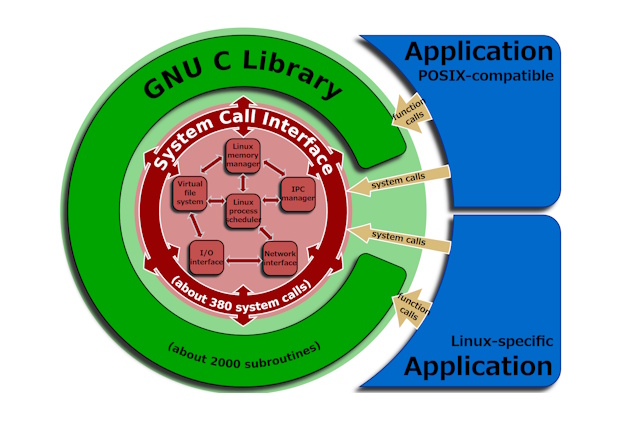
GLIBC (GNU C Library) is a foundational library used on Linux and many other operating systems. It handles essential functions including memory management, file operations, network communication, process management, and mathematical computations — it’s essentially the bedrock that software runs on.
Because it serves as the foundation for programs to run correctly, version mismatches can cause serious problems.
Steps to Resolution
By installing GLIBC 2.28, backward compatibility takes care of the GLIBC_2.25 and GLIBC_2.27 errors as well.
Step 1: Update & Install Build Dependencies
apt-get update
apt-get install -y wget perl gcc make
apt-get install -y gawk bison
Step 2: Download & Extract GLIBC 2.28
cd /tmp
wget https://ftp.gnu.org/gnu/glibc/glibc-2.28.tar.gz
tar -xf glibc-2.28.tar.gz
Step 3: Create the Build Directory
mkdir -p ./glibc-build && cd ./glibc-buildStep 4: Build and Install GLIBC
../glibc-2.28/configure --prefix=/opt/glibc-2.28
make && make install
Step 5: Verify the Installation
ls -la /opt/glibc-2.28

# Example output:
total 40
drwxr-xr-x 10 root root 4096 Nov 6 13:15 .
drwxr-xr-x 1 root root 4096 Nov 6 13:15 ..
drwxr-xr-x 2 root root 4096 Nov 6 13:15 bin
drwxr-xr-x 2 root root 4096 Nov 6 13:15 etc
drwxr-xr-x 21 root root 4096 Nov 6 13:15 include
drwxr-xr-x 4 root root 4096 Nov 6 13:15 lib
drwxr-xr-x 3 root root 4096 Nov 6 13:15 libexec
drwxr-xr-x 2 root root 4096 Nov 6 13:15 sbin
drwxr-xr-x 4 root root 4096 Nov 6 13:15 share
drwxr-xr-x 3 root root 4096 Nov 6 13:15 var
Step 6: Install patchelf & Locate the Node Binary
apt install -y patchelf
command -v node

# Example output:
# /root/.nvm/versions/node/v20.9.0/bin/node
Step 7: Confirm the Node Binary is ELF Format
file {path to the Node binary found above}

# Example output:
# /root/.nvm/versions/node/v20.9.0/bin/node: ELF 64-bit LSB executable, x86-64, version 1 (GNU/Linux), dynamically linked, interpreter /lib64/ld-linux-x86-64.so.2, BuildID[sha1]=..., for GNU/Linux 3.2.0, not stripped, too many notes (256)
Step 8: Re-link the Node Binary with patchelf
patchelf --set-interpreter /opt/glibc-2.28/lib/ld-linux-x86-64.so.2 --set-rpath /opt/glibc-2.28/lib/:/lib/x86_64-linux-gnu/:/usr/lib/x86_64-linux-gnu/ {path to the Node binary found above}

# Example:
# patchelf --set-interpreter /opt/glibc-2.28/lib/ld-linux-x86-64.so.2 --set-rpath /opt/glibc-2.28/lib/:/lib/x86_64-linux-gnu/:/usr/lib/x86_64-linux-gnu/ /root/.nvm/versions/node/v20.9.0/bin/node

# Note: For AArch64, use the following paths instead:
# patchelf --set-interpreter /opt/glibc-2.28/lib/ld-linux-aarch64.so.1 --set-rpath /opt/glibc-2.28/lib/:/lib/aarch64-linux-gnu/:/usr/lib/aarch64-linux-gnu/ {Node binary path}
Step 9: Verify Node.js Works
node -v

# Example output:
# v20.9.0
Conclusion
Node.js 20.9.0 is now running successfully!
The GLIBC version mismatch error can generally be resolved using this procedure.
Of course, upgrading the OS is the most recommended approach, but when you’re stuck on an older OS version for whatever reason, sometimes you have no choice but to install the missing library manually.

![[2018] Installing Windows 7 Starter on a VAIO type P to Make It Usable Again](https://miyagadget.page/wp-content/uploads/2023/08/g3cFO3Vl.jpg)
![[Installation Guide] Running Windows 10 on ARM on a Lumia 950 XL](https://miyagadget.page/wp-content/uploads/2023/08/SC5OSG1l.jpg)
Leave a Reply