![[Free] How to Clear the EPSON EP-804A Waste Ink Pad Error with the Open-Source EWR Tool](https://miyagadget.page/wp-content/uploads/2026/09/hero-ep804a-waste-ink-error.jpg)
Hi, this is Shichinomiya-san (@shichinomiya_s).
I still use an Epson printer released in 2011, the Colorio EP-804A, but one day its LCD showed “廃インク吸収パッドの吸収量が限界に達しました。” (The waste ink pad is at the end of its service life.) and it stopped printing entirely.
The message also says “エプソンの修理窓口に交換をご依頼ください。” (Please contact the Epson repair center to request a replacement.), but repair requests for the EP-804A ended on September 30, 2018. There is no longer any way to have the manufacturer fix it.
So this time, I tried to clear this error myself using “EWR (Epson Waste Reset)“, a free open-source tool published on GitHub.
Here’s the bottom line: the error disappeared without spending a single yen, and the printer is printing again. The waste ink counter that had exceeded its limit (7927 / 7923) is back to 0%, and the printer’s status has returned from “error” to “standby”. However, I ran into a few stumbling blocks: the app crashes right after launch, and an option in the README no longer works in the latest version. Also, resetting the counter to 0 does not make the pad inside clean. I’ll walk you through the procedure honestly, including those points.
What Is the Epson Waste Ink Pad Error?
Inkjet printers discard small amounts of ink during head cleaning and other maintenance. The discarded ink is absorbed by a “waste ink absorber pad” (a sponge-like part) at the bottom of the unit.
The printer records the amount of discarded ink in its internal memory (EEPROM) as a “waste ink counter“. When this counter reaches its limit, the printer halts with this error, regardless of how wet the pad actually is.
In other words, resetting the counter to 0 clears the error. However, since the counter is an estimate based on the actual amount of discarded ink, if it’s at 100%, it’s safest to assume the pad is quite soaked. I’ll go into more detail on this in the “Caveats” section later.
Comparing the DIY reset options
Since manufacturer repair is no longer available, I looked into ways to clear it myself. I mainly found the following three options.
| Method | Cost | Notes |
|---|---|---|
| WIC Reset Utility (commercial tool) | about 1,000 yen per one-time key | Multiple EP-804A success stories on Japanese blogs |
| EWR (Epson Waste Reset) | Free | The source is public (Apache License 2.0). It also has a “trial run” mode that writes nothing |
| Reset TX730WD | Free | Not adopted: the distributor isn’t clear and it tells you to disable your antivirus. There are also reports of it failing with newer firmware |
This time I chose EWR, which is free and fully open. The clincher was that before writing anything, it has modes that “only read the current values” and “only show what would be written”, so you don’t rewrite the EEPROM blindly.
The environment I worked in
| Item | Details |
|---|---|
| Printer | EPSON Colorio EP-804A (released September 2011) |
| Connection | USB (also normally used over Wi-Fi) |
| PC | Windows 11 Pro (10.0.26100) |
| Software | EWR v1.3.1 (released September 8, 2026, EWR-v1.3.1-win.zip) |
| Additional install | Microsoft Visual C++ 2015-2022 Redistributable (x64) |
| Work date | September 26, 2026 |
EWR is also published for Linux and Mac (Apple silicon) in addition to Windows, but this time I only tried the Windows version.
Step 1: Download EWR and check whether your model is supported
EWR is published on GitHub at RxNaison/Epson-Waste-Reset. Download the Windows zip (EWR-v1.3.1-win.zip) from Releases and extract it, and you’ll get the following two files.
- ewr.exe — the main program (about 812 KB)
- database.json — the supported-model data (about 2.7 MB)
If you open database.json and search for “EP-804A”, there’s a dedicated entry. In other words, the EP-804A is a supported model. You can also check here whether your own model is listed.
Step 2: Stumbling block — ewr.exe crashes right after launch
I double-clicked ewr.exe right away, but no window appeared and it closed immediately. Running .ewr.exe --help from PowerShell also ended without showing anything.
Looking at the Windows event log revealed the cause.
障害が発生しているアプリケーション名: ewr.exe (Faulting application name: ewr.exe)
障害が発生したモジュール名: MSVCP140.dll、バージョン: 14.29.30153.0 (Faulting module name: MSVCP140.dll, version: 14.29.30153.0)
例外コード: 0xc0000005 (Exception code: 0xc0000005)
The crash wasn’t inside ewr.exe itself, but inside the Visual C++ runtime (MSVCP140.dll). The runtime installed on my PC was an old 14.29 build, and apps built with a newer toolchain can crash at startup on such systems.
The fix was simple: just install Microsoft’s official Visual C++ 2015-2022 Redistributable (x64). After installation, MSVCP140.dll was updated to 14.44.35211.0, and ewr.exe started up fine.
If “nothing happens when I double-click” applies to you too, try this first.
Step 3: Check that the printer is visible (read-only)
With the printer powered on and connected via USB, open PowerShell in the folder that contains ewr.exe and run the following command.
.ewr.exe --list[1] USBPRINT mi_01
IEEE 1284 device ID: MDL "EP-804A"
Database entry: EP-804A
[2] IMAGE mi_00
IEEE 1284 device ID: (no reply)The printer’s USB connection (USBPRINT) was recognized as an EP-804A and matched the database entry. The second entry, IMAGE, is the scanner interface, so no reply there is expected.
Step 4: Read the current counter values (no writes)
Next, check the state before rewriting anything. --status is a read-only mode; at startup it shows “no EEPROM writes will be sent.”
.ewr.exe --status --model EP-804AIf you don’t pass --model EP-804A, it asks whether the detected model is correct and waits for input, so it’s easier to specify the model from the start.
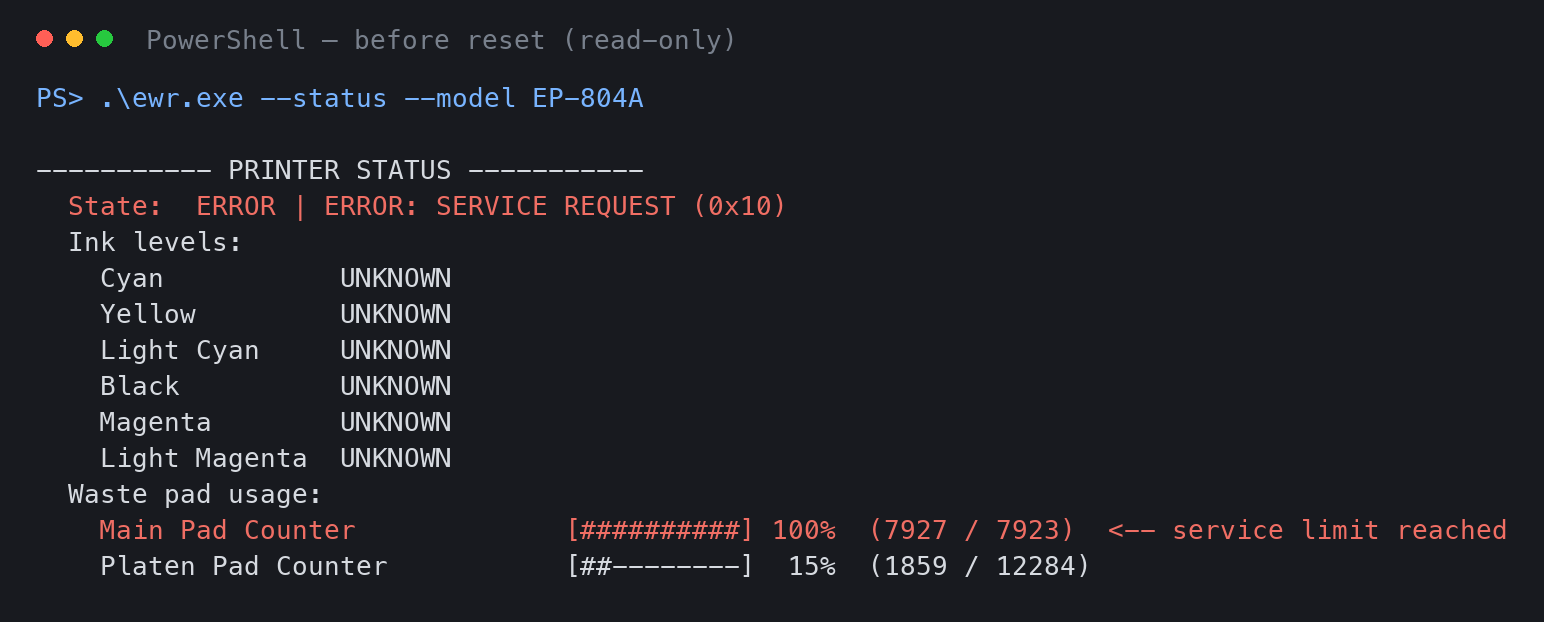
| Item | Before reset |
|---|---|
| Printer status | ERROR: SERVICE REQUEST (service required) |
| Main Pad Counter | 100% (7927 / 7923) ← over the limit |
| Platen Pad Counter | 15% (1859 / 12284) |
| Ink levels | All UNKNOWN (can’t be read during an error) |
The main counter had exceeded the limit of 7923, reaching 7927, which turned out to be the cause of the error. The other counter (Platen) was still at 15%.
Note that the supported-model data is updated over the network at startup, so the displayed values can differ from the limits in the database.json we looked at in Step 1.
Step 5: Dry-run to check what will be written
Instead of resetting right away, first display only what would be written.
.ewr.exe --dry-run --model EP-804AAt startup it shows “DRY RUN: EWR will detect, read and plan, but write nothing.” This time it planned to rewrite 13 bytes, listing the “current value” and “value to write” for each.
Make a note of these “current values” so you can restore things in case something goes wrong.
Step 6: Back up the entire EEPROM just in case
As a safety net, save the whole EEPROM contents to a file. This is also read-only.
.ewr.exe --dump --model EP-804A[SUCCESS] Wrote 256 of 256 EEPROM byte(s) to ewr_dump_EP_804A_1790399918.txt.All 256 bytes were saved. However, it took over 5 minutes to finish. Even if it looks stuck, wait a while.
Step 7: The reset, at last
I hit one more snag here. The GitHub README lists a --yes option to skip the confirmation, but when I passed it in v1.3.1, it exited with the following message and did nothing.
[!] Unknown option: --yes (see --help).Checking with --help, the options available in v1.3.1 were only --status, --list, --model, --interface, --dry-run, --dump, --no-update, --usb-soft-reset, and --help. Just run it without --yes and answer the confirmation prompt with y.
.ewr.exe --model EP-804AIt asks “Reset the waste ink pad counters of EP-804A now? [y/N]:”, so type y and press Enter.
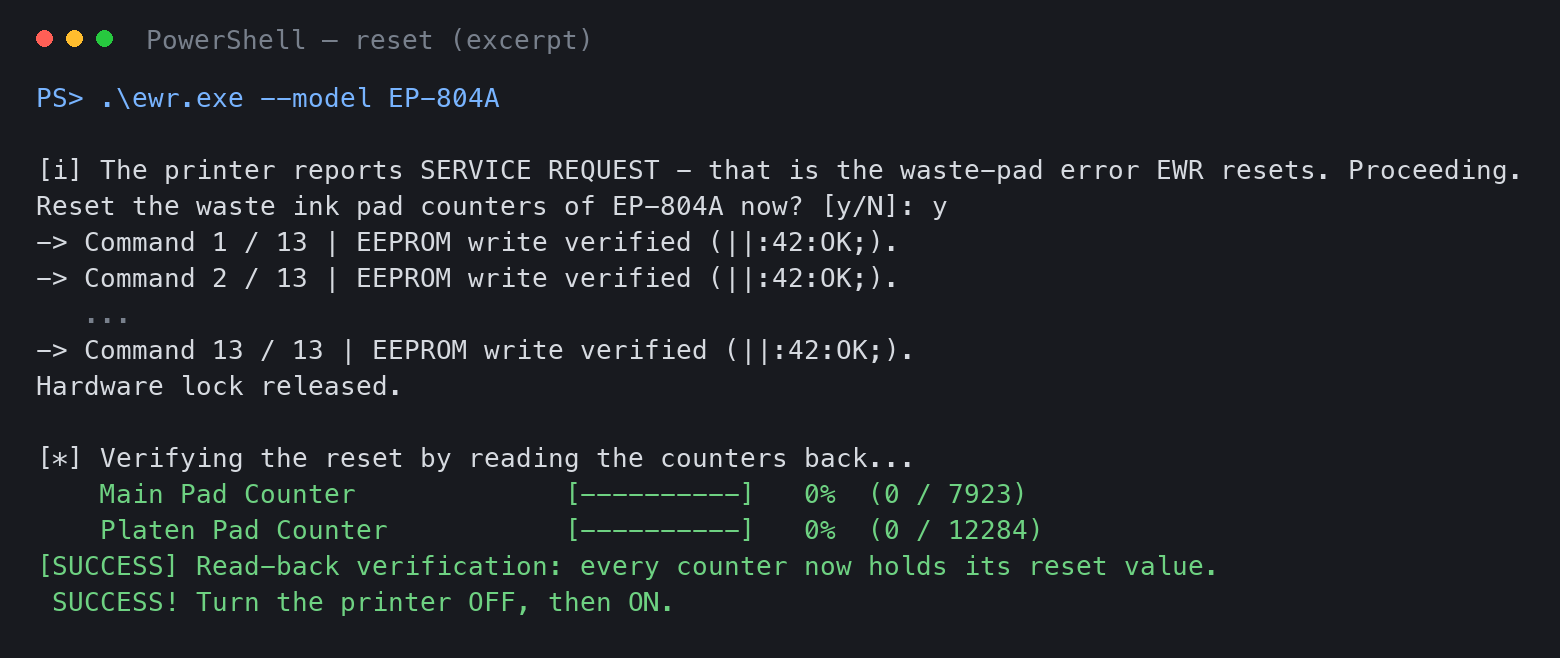
All 13 writes returned “EEPROM write verified”. On top of that, EWR reads the counters back after writing to confirm, and it showed that both Main and Platen dropped to 0%. The written values also matched the plan from the dry run in Step 5.
Finally, it said “SUCCESS! Turn the printer OFF, then ON.”, so I did exactly that.
Result: the error is gone and I can print again
When I turned the printer off with its power button and on again, the waste ink error on the LCD was gone.
Just to be sure, I checked the status once more in read-only mode.
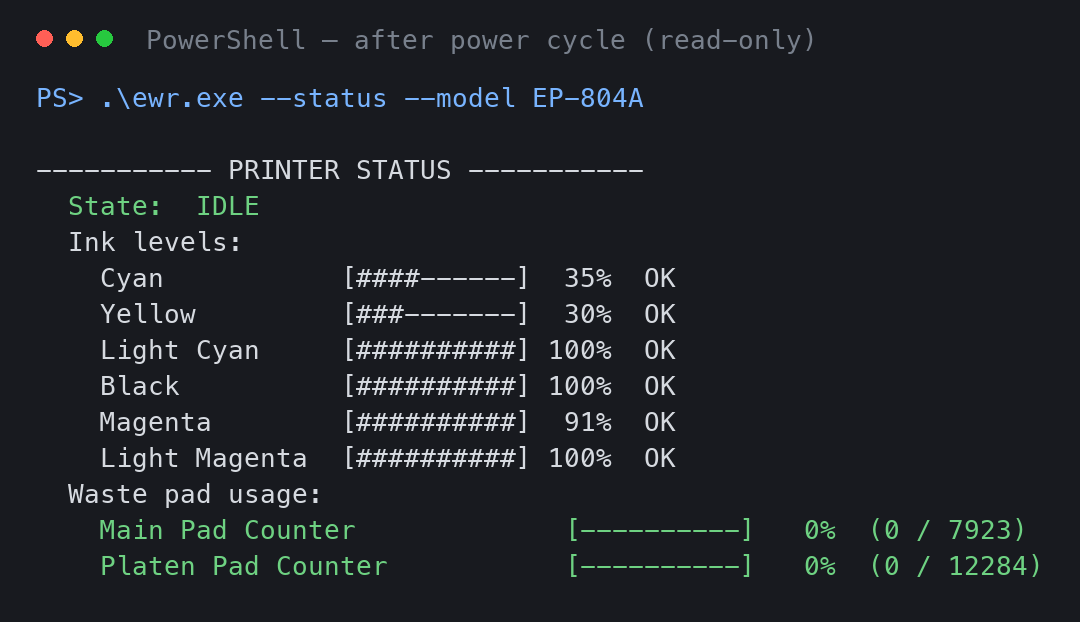
| Item | Before reset | After reset |
|---|---|---|
| Printer status | ERROR: SERVICE REQUEST | IDLE (standby) |
| Main Pad Counter | 100% (7927 / 7923) | 0% (0 / 7923) |
| Platen Pad Counter | 15% (1859 / 12284) | 0% (0 / 12284) |
| Ink levels | All UNKNOWN | Now readable (cyan 35%, yellow 30%, etc.) |
The status returned to “IDLE (standby)” — in other words, back to normal — and the ink levels that couldn’t be read during the error are now displayed. The counter stayed at 0% even after powering off and on. Finally, I printed an actual page and confirmed that printing works without any problems.
Workflow summary
Because I inserted “read → view the plan → back up” before rewriting anything, I could proceed with peace of mind all the way to the end.
| Step | Command | What it does | Writes |
|---|---|---|---|
| 1 | .ewr.exe --list | Check that the printer is visible | None |
| 2 | .ewr.exe --status --model EP-804A | Read the current counter values | None |
| 3 | .ewr.exe --dry-run --model EP-804A | Check what will be written | None |
| 4 | .ewr.exe --dump --model EP-804A | Back up the entire EEPROM | None |
| 5 | .ewr.exe --model EP-804A | Reset (answer y to the prompt) | Yes |
| 6 | — | Power the printer off and on | — |
| 7 | .ewr.exe --status --model EP-804A | Verify after the reset | None |
Who this is for / Caveats
Who this is for:
- People who want to keep using an old Epson model whose repair service has ended
- People who don’t want to use paid tools or free tools of unknown origin
- People who are comfortable typing commands in PowerShell
Caveats:
- The pad itself has not been replaced. Since the counter was at 100%, the pad inside has likely absorbed quite a lot of ink. If you keep using it as is, ink may leak from the bottom of the unit.
- I didn’t replace the pad this time, and decided to put newspaper under the unit and keep an eye on it. If ink leaks, I plan to consider replacing the pad or routing the waste ink out to an external bottle with a tube.
- Rewriting the EEPROM is at your own risk. You’re no longer covered by the manufacturer’s warranty or support. EWR itself is also provided “as is” with no warranty.
- The
--yesoption in the EWR README didn’t work in v1.3.1. Options can differ by version, so be sure to check with--helpbefore using it.
To be ready in case ink leaks, it’s reassuring to at least see what replacement waste ink absorber pads are like. Also, once the ink levels that couldn’t be read during the error became visible, cyan and yellow had dropped to around 30%. The EP-804A uses Epson’s IC50 series ink, the one with the balloon icon (search for IC6CL50).
Summary
- The EP-804A’s “waste ink pad is at the end of its service life” error was cleared with the free open-source “EWR” tool. Cost: free.
- The main waste ink counter went from 100% (7927 / 7923) to 0%, and the platen side also went from 15% to 0%. The status returned from ERROR to IDLE, and printing worked too.
- The reason ewr.exe crashed right after launch was that the Visual C++ runtime was outdated. Installing the latest version fixed it.
- The README’s
--yesdoesn’t work in v1.3.1. Just answeryto the prompt. - Being able to “read, view the plan, and back up” before writing —
--status→--dry-run→--dump— is what makes EWR feel safe to use. - However, the pad is not clean, so watch out for ink leaks.
This method is recommended for anyone who wants to keep using an old Epson printer whose repair service has ended, just a little longer.
Related reading
Here are more articles about resolving everyday device and PC troubles myself.

![[Preparation] Running Windows 10 on ARM on the Lumia 950 XL](https://miyagadget.page/wp-content/uploads/2019/02/kQ6Lm44l.jpg)

Leave a Reply