Skip to content
Miya-Gadget
  • PC
  • Gadgets
  • Generative AI
  • Travel
  • Cars
  • Announcements
  • Contact
JA / EN
  1. Home
  2. PC
  3. [Solved] Deleting the ‘nul’ File from Claude Code on Windows
PC

[Solved] Deleting the ‘nul’ File from Claude Code on Windows

2026年1月29日 · Shichinomiya
[Solved] Deleting the ‘nul’ File from Claude Code on Windows

Hi, I’m Shichinomiya-san (@shichinomiya_s).

In this article, I’ll explain how to delete the “nul” file that occasionally gets created when using Claude Code on Windows.

Claude Code is an incredibly useful tool, but when using it on Windows, you may encounter some peculiar issues. One of them is the “nul” file problem that I’ll be covering today.


Table of Contents

Toggle

  • The Mysterious “nul” File
  • You Can’t Delete It Normally
  • How to Delete It
  • Conclusion

The Mysterious “nul” File

Have you ever noticed a file like this appearing in your directory while using Claude Code on Windows?

This “nul” file shows up in your directory even though you never created it yourself.

This file is occasionally created by mistake when Claude Code performs file operations. The name “NUL” is actually one of the reserved device names in Windows.

Windows has the following reserved device names:

  • CON (Console)
  • PRN (Printer)
  • AUX (Auxiliary device)
  • NUL (Null device, similar to /dev/null)
  • COM1-COM9 (Serial ports)
  • LPT1-LPT9 (Parallel ports)

These names have been reserved for backward compatibility since the MS-DOS era and are not intended to be used as regular file names. This is why things get a bit tricky when such a file is accidentally created.


You Can’t Delete It Normally

When you try to delete it normally, you’ll get an error message saying “Invalid MS-DOS function” and the deletion fails.
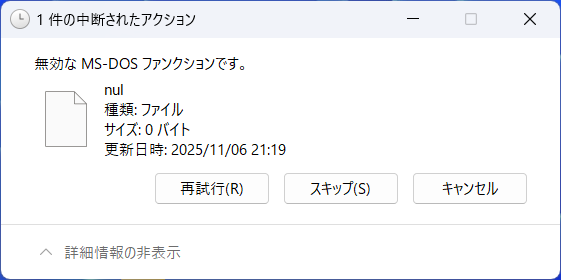
Whether you right-click and select delete in Explorer, press the Delete key, or run del nul in Command Prompt, you’ll encounter this error. The file simply won’t delete.

This happens because Windows tries to interpret “nul” as a device rather than a file.


How to Delete It

So how can we delete this troublesome file?

The answer is to use the UNC path format. Run the following command in Command Prompt or PowerShell:

del "\\?\C:\path\to\nul"

For example, if the “nul” file is in the C:\Users\Username\Projects directory, run the following:

del "\\?\C:\Users\Username\Projects\nul"

The \\?\ prefix tells Windows to “handle this path as-is without any special interpretation.” This bypasses the reserved device name check and allows you to delete the file normally.

If you’re using PowerShell, you can also use the following command:

Remove-Item -LiteralPath "\\?\C:\path\to\nul"


Conclusion

In this article, I covered how to delete the “nul” file that occasionally appears when using Claude Code on Windows.

This issue is specific to Windows and doesn’t occur on macOS or Linux. While we hope for a fix on the Claude Code side in the future, this workaround should help you deal with the problem in the meantime.

I hope this helps anyone who’s been struggling with the same issue.

See you in the next article!

Previous Article DIY Battery Replacement for the Braun Series 5 Shaver — It’s Easier Than You Think
Next Article Can GTX 1080 Ti Run Modern AI? Qwen 3.5 Local LLM Benchmark Results

Related Posts

How to Make a MicroSD Card Appear as a Local Disk on Windows 10 (64-bit)

How to Make a MicroSD Card Appear as a Local Disk on Windows 10 (64-bit)

The Complete Guide to Claude Code: Get Started with AI Development on Windows in 5 Minutes

The Complete Guide to Claude Code: Get Started with AI Development on Windows in 5 Minutes

The Insanely Cheap WD Elements 12TB External HDD — An Ultrastar in Disguise

The Insanely Cheap WD Elements 12TB External HDD — An Ultrastar in Disguise

Building a Weather Forecast App with Claude Code and API Integration

Building a Weather Forecast App with Claude Code and API Integration

Leave a Reply Cancel reply

Your email address will not be published. Required fields are marked *

Shichinomiya

Shichinomiya

A blogger who loves PC and gadgets. Sharing daily discoveries.

@shichinomiya_s

Popular Posts

  • Installing an NVMe SSD (960EVO) on a Non-NVMe PC for a Speed Boost
  • How to Downgrade the au W03/W04 for Use with Rakuten Mobile
  • [Flask + WebAuthn] Building a Mobile-Friendly Household Budget Web App with Passkey Authentication
  • Stay Report: Odakyu Yamanakako Forest Cottage – Mori no Cottage
  • AliExpress ‘BR~MG’ Tracking Numbers Explained: Delivery Timeline and How to Track Your Package

Categories

  • Announcements
  • Cars
  • Cycling
  • Gadgets
  • Generative AI
  • Home Appliances
  • Internet Service
  • Outings
  • Overseas Shopping
  • PC
  • Rental Servers & VPS
  • Travel
Miya-Gadget

A review blog about PC, gadgets, and DIY.
Sharing daily tech experiences.

Categories

  • PC (35)
  • Gadgets (25)
  • Generative AI (18)
  • Internet Service (7)
  • Travel (4)
  • Announcements (3)
  • Rental Servers & VPS (2)
  • Overseas Shopping (2)

Recent Posts

  • Tesla V100 32GB Runs Qwen3.8-27B: 131k Context on a Single Card — Measured Benchmark
  • Tesla V100 32GB in 2026: Local LLM Benchmark with Qwen 3.6 — 98.8 tok/s on MoE 35B, 1.6x Faster Than M1 Max (Used, ≈$900)
  • Darkbloom Review: Can a Mac Really Earn Money Serving AI? (I Tested It for a Day)
  • Can you really cut your AI API bill? I deployed the context-compression tool “Headroom” and measured it

© 2026 Miya-Gadget. All rights reserved.