![[Installation Guide] Running Windows 10 on ARM on a Lumia 950 XL](https://miyagadget.page/wp-content/uploads/2023/08/SC5OSG1l.jpg.webp)
This article is a continuation of the previous “[Preparation Guide] Running Windows 10 on ARM on a Lumia 950 XL.”
If you haven’t read the preparation guide, I highly recommend checking it out first.
Previous article: [Preparation Guide] Running Windows 10 on ARM on a Lumia 950 XL
Let’s get right into it.
1. Installing Windows 10 on ARM
Step 0: Make sure your Lumia is fully charged. The Type-C port is disabled when running Windows 10 on ARM, so you won’t be able to charge during use.
If you don’t charge now, you won’t be able to charge again until the Windows 10 on ARM setup is complete.
Step 1: Mount the Windows 10 on ARM ISO on your PC.
![[Installation Guide] Running Windows 10 on ARM on a Lumia 950 XL](https://miyagadget.page/wp-content/uploads/2026/03/migrated/HoqzjgK.jpg)
Step 2: Launch WoA Installer for Lumia. A disclaimer will appear when it starts — read it and click OK.
![[Installation Guide] Running Windows 10 on ARM on a Lumia 950 XL](https://miyagadget.page/wp-content/uploads/2026/03/migrated/GId0Ns6.jpg)
Step 3: First, click the “Advanced” tab to load the core package.
![[Installation Guide] Running Windows 10 on ARM on a Lumia 950 XL](https://miyagadget.page/wp-content/uploads/2026/03/migrated/s8BX3ne.jpg)
Step 4: Click “Import Core Package” and select the “Core Package x.x.x-hotfix.zip” you prepared earlier.
![[Installation Guide] Running Windows 10 on ARM on a Lumia 950 XL](https://miyagadget.page/wp-content/uploads/2026/03/migrated/PCo5AAd.jpg)
![[Installation Guide] Running Windows 10 on ARM on a Lumia 950 XL](https://miyagadget.page/wp-content/uploads/2026/03/migrated/FGfWcua.jpg)
Step 5: A changelog will appear — click OK. Once loading is complete, click OK again.
![[Installation Guide] Running Windows 10 on ARM on a Lumia 950 XL](https://miyagadget.page/wp-content/uploads/2026/03/migrated/ksOsYDp.jpg)
Step 6: Next, load the Windows 10 on ARM image into WoA Installer for Lumia. Click the “Windows Deployment” tab, then click “Browse.”
![[Installation Guide] Running Windows 10 on ARM on a Lumia 950 XL](https://miyagadget.page/wp-content/uploads/2026/03/migrated/gdUPerm.jpg)
Step 7: Navigate to the mounted Windows 10 on ARM disk image, go to the “source” folder, and select “install.wim.”
![[Installation Guide] Running Windows 10 on ARM on a Lumia 950 XL](https://miyagadget.page/wp-content/uploads/2026/03/migrated/9NfZawL.jpg)
Step 8: Select whether you have a Lumia 950 or 950 XL.
![[Installation Guide] Running Windows 10 on ARM on a Lumia 950 XL](https://miyagadget.page/wp-content/uploads/2026/03/migrated/NSV2Xow.jpg)
Step 9: Finally, click “Full Deployment.” This will begin installing Windows 10 on ARM onto your Lumia. In my experience, it took about 30 minutes.
![[Installation Guide] Running Windows 10 on ARM on a Lumia 950 XL](https://miyagadget.page/wp-content/uploads/2026/03/migrated/0IqrzrX.jpg)
Step 10: If “finished” is displayed, the installation was successful. Make sure to use “Safely Remove Hardware” before disconnecting the Lumia from your PC.
The second hurdle has been cleared.
![[Installation Guide] Running Windows 10 on ARM on a Lumia 950 XL](https://miyagadget.page/wp-content/uploads/2026/03/migrated/ATZybbN.jpg)
2. Setting Up Windows 10 on Lumia
The Windows setup process itself is no different from a normal Windows 10 setup. It will be sluggish and the scaling won’t be configured yet, making it quite difficult to operate — but hang in there.
By the way, even if you try connecting a mouse or keyboard via Type-C because you don’t want to use touch controls, they won’t be recognized in the current state. It won’t even provide power, so when using Windows 10 on ARM, you’re limited to battery power only.
The on-screen keyboard takes a while to appear during setup, so be patient.
As a side note, during the Win10 setup when Cortana starts talking saying “Hi! I’m Cortana!” — something that usually annoys me every time — hearing it come from the Lumia 950 XL actually made me happy.
![[Installation Guide] Running Windows 10 on ARM on a Lumia 950 XL](https://miyagadget.page/wp-content/uploads/2026/03/migrated/RPJzur4.jpg)
3. Enabling Dual Boot
This enables dual booting between Windows 10 Mobile and Windows 10 on ARM.
Step 1: Power on the device. When the bootloader appears, select “Developer Menu” then “Mass Storage Mode.”
For navigation, the volume up/down buttons serve as directional keys, and the camera shutter button acts as the select button.
![[Installation Guide] Running Windows 10 on ARM on a Lumia 950 XL](https://miyagadget.page/wp-content/uploads/2026/03/migrated/4zlZtVh.jpg)
![[Installation Guide] Running Windows 10 on ARM on a Lumia 950 XL](https://miyagadget.page/wp-content/uploads/2026/03/migrated/pMsz4CJ.jpg)
Step 2: Once in Mass Storage Mode, connect to your PC and launch “WoA Installer for Lumia.”
![[Installation Guide] Running Windows 10 on ARM on a Lumia 950 XL](https://miyagadget.page/wp-content/uploads/2026/03/migrated/FGypdtd.jpg)
Select the “Dual Boot” tab at the top and click “Check Dual Boot Status.”
![[Installation Guide] Running Windows 10 on ARM on a Lumia 950 XL](https://miyagadget.page/wp-content/uploads/2026/03/migrated/aaGyfti.jpg)
Step 3: Wait a moment. When the screen changes, click “Enable DualBoot” to activate dual booting.
![[Installation Guide] Running Windows 10 on ARM on a Lumia 950 XL](https://miyagadget.page/wp-content/uploads/2026/03/migrated/3ryuZGc.jpg)
If you see this screen, dual boot has been successfully enabled.
![[Installation Guide] Running Windows 10 on ARM on a Lumia 950 XL](https://miyagadget.page/wp-content/uploads/2026/03/migrated/yPPX8ed.jpg)
If you have a Lumia 950, exit Mass Storage Mode, restart the device, and proceed to Chapter 5.
If you have a Lumia 950 XL, stay in Mass Storage Mode and proceed to Chapter 4.
4. [XL Only] Enabling the Adreno 430 (GPU)
Lumia 950 XL owners benefit from more advanced driver development, which means Wi-Fi and GPU can be enabled.
Wi-Fi was included in the core package, but the GPU requires some manual steps, which I’ll explain here.
Step 1: In WoA Installer for Lumia, click the “Advanced” tab. Click “Install GPU” to install the GPU driver.
After installation, instructions for the manual steps will be displayed — read them carefully.
![[Installation Guide] Running Windows 10 on ARM on a Lumia 950 XL](https://miyagadget.page/wp-content/uploads/2026/03/migrated/vHM29ey.jpg)
Step 2: Boot the Lumia 950 XL into Windows 10 on ARM.
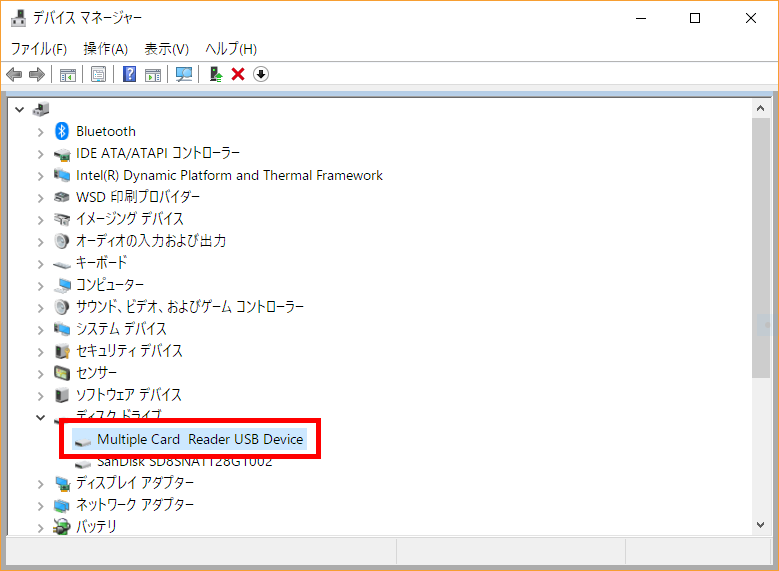
Step 3: Open Device Manager and find the device with hardware ID “MSHW1004.”
(It’s usually around the 6th item from the top under unknown devices.)
Step 5: Right-click it and select “Update driver.” *I forgot to take screenshots for some steps, so some images use a 960 EVO instead.
![[Installation Guide] Running Windows 10 on ARM on a Lumia 950 XL](https://miyagadget.page/wp-content/uploads/2026/03/migrated/6kay0H9.jpg)
Step 6: Select “Browse my computer for driver software.”
![[Installation Guide] Running Windows 10 on ARM on a Lumia 950 XL](https://miyagadget.page/wp-content/uploads/2026/03/migrated/ng1XM8g.jpg)
Step 7: Click “Let me pick from a list of available drivers on my computer.”
![[Installation Guide] Running Windows 10 on ARM on a Lumia 950 XL](https://miyagadget.page/wp-content/uploads/2026/03/migrated/aTi7imz.jpg)
Step 7: Click “Have Disk” and then click “Browse.”
![[Installation Guide] Running Windows 10 on ARM on a Lumia 950 XL](https://miyagadget.page/wp-content/uploads/2026/03/migrated/aqA63z4.jpg)
![[Installation Guide] Running Windows 10 on ARM on a Lumia 950 XL](https://miyagadget.page/wp-content/uploads/2026/03/migrated/0gBvGaW.jpg)
Step 8: Navigate to “C:\Users\Public\OEMPanel” and select the .inf file, then install it.
![[Installation Guide] Running Windows 10 on ARM on a Lumia 950 XL](https://miyagadget.page/wp-content/uploads/2026/03/migrated/Sc7FhDX.jpg)
You’ll get about two warning prompts — select “Install” for both.
Step 9: After installation completes, restart the device. GPU driver installation is now complete. It should boot into tablet mode.
![[Installation Guide] Running Windows 10 on ARM on a Lumia 950 XL](https://miyagadget.page/wp-content/uploads/2026/03/migrated/xsNtfCP.jpg)
With the GPU enabled, Windows 10’s (admittedly excessive) animations are now handled by the GPU, resulting in significantly smoother performance.
5. Windows 10 License Activation
After installing Windows 10 on ARM, the license somehow appears to be activated already. Whether the developers configured this is unclear, but using it this way would mean running an unauthorized license.
So let’s change the mystery product key to a legitimate one.
Step 1: Go to “Settings” → “Update & Security” → “Activation.”
Step 2: Click “Change product key” and enter your legitimate product key.
![[Installation Guide] Running Windows 10 on ARM on a Lumia 950 XL](https://miyagadget.page/wp-content/uploads/2026/03/migrated/JYduT7x.jpg)
Step 3: Click “Activate.”
![[Installation Guide] Running Windows 10 on ARM on a Lumia 950 XL](https://miyagadget.page/wp-content/uploads/2026/03/migrated/StEdLQr.jpg)
Step 4: Once the change is complete, license activation is done. This concludes all the steps. Well done!
![[Installation Guide] Running Windows 10 on ARM on a Lumia 950 XL](https://miyagadget.page/wp-content/uploads/2026/03/migrated/3zfqNEu.jpg)
Closing Thoughts
![[Installation Guide] Running Windows 10 on ARM on a Lumia 950 XL](https://miyagadget.page/wp-content/uploads/2026/03/migrated/SC5OSG1.jpg)
After installing Windows 10 on the Lumia 950 XL, I was pleasantly surprised by how smoothly it runs — relatively speaking. However, this is limited to Windows 10’s built-in apps and software recompiled for ARM64. Running standard Win32 applications results in performance significantly worse than Atom Cherry Trail-era SoCs found in older Windows tablets.
If you ask whether running WoA on a Lumia 950 XL is practical, it’s definitely not. However, the latest Snapdragon 845/850/8150 chips are many times more powerful than the Snapdragon 810, and once newer generations adopt UFS 2.1 storage instead of eMMC, performance shouldn’t be an issue.
Ultimately, I expect this technology to find its way into devices like the Surface Pro LTE or a potential Surface Phone, and I’m very excited to see how things develop.
Even if you don’t own one, running Windows 10 on an ARM processor is quite fascinating, so it might be worth giving it a try if you’re up for a small investment.

Leave a Reply