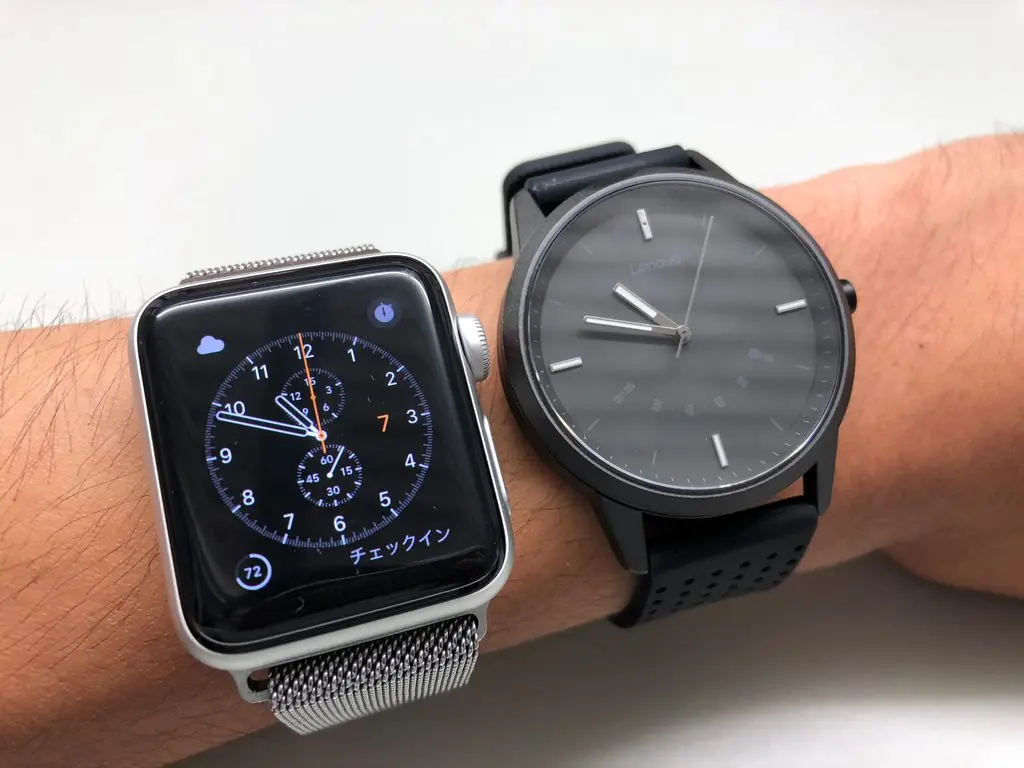
I picked up the Lenovo Watch 9, so here’s my review.
About the Lenovo Watch 9
The Lenovo Watch 9 is a hybrid smartwatch that was announced on March 20, 2018, alongside the Lenovo K5 and K5 Play.
Its exterior looks like a regular analog watch, but with the added bonus of Bluetooth connectivity that lets it pair with your smartphone.
Ordering and Delivery
The cheapest option was JoyBuy.com, but since shipping seemed like it would take a while, I went with AliExpress instead.
I purchased it from the Globale Electronic Style Co.,Ltd shop for 2,646 yen (roughly $20).
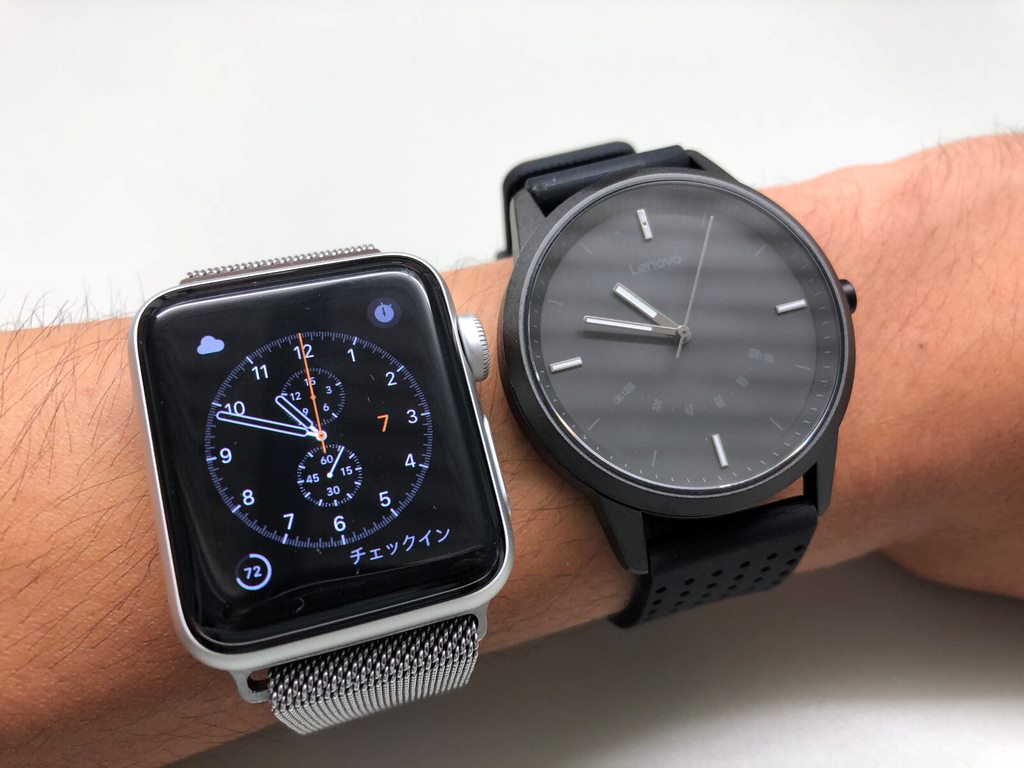
I placed the order on June 29, it shipped via SingaporePost on July 4, and it arrived on July 7.
I was actually surprised at how fast SingaporePost was. The tracking updated to “Held at post office” at midnight on July 7, so it essentially arrived at the post office on July 6.
Design Review
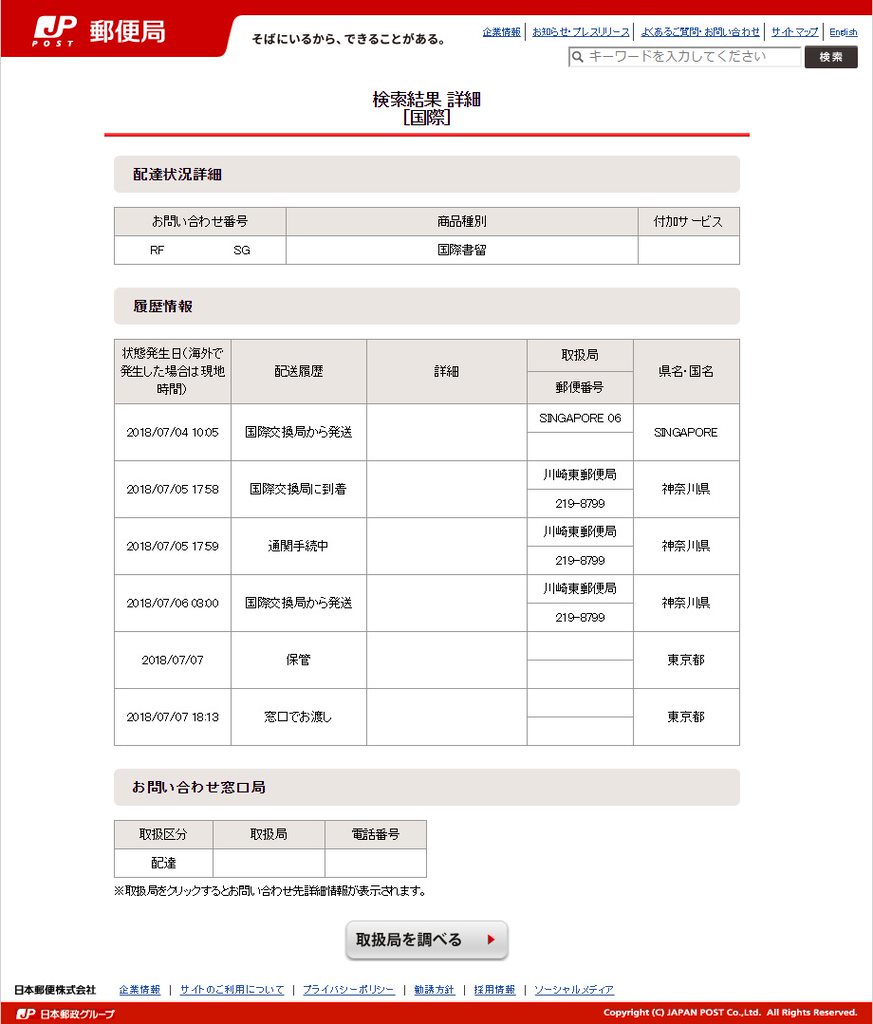
Here’s the box. In person, it does look a bit cheaper than in photos.
It’s a $20 watch, though, so that’s to be expected.
Open the box, and you’re greeted by the manual.
Many Chinese products adopt the Apple-style “unbox to see the product first” approach, but the Lenovo Watch 9 doesn’t follow that trend.
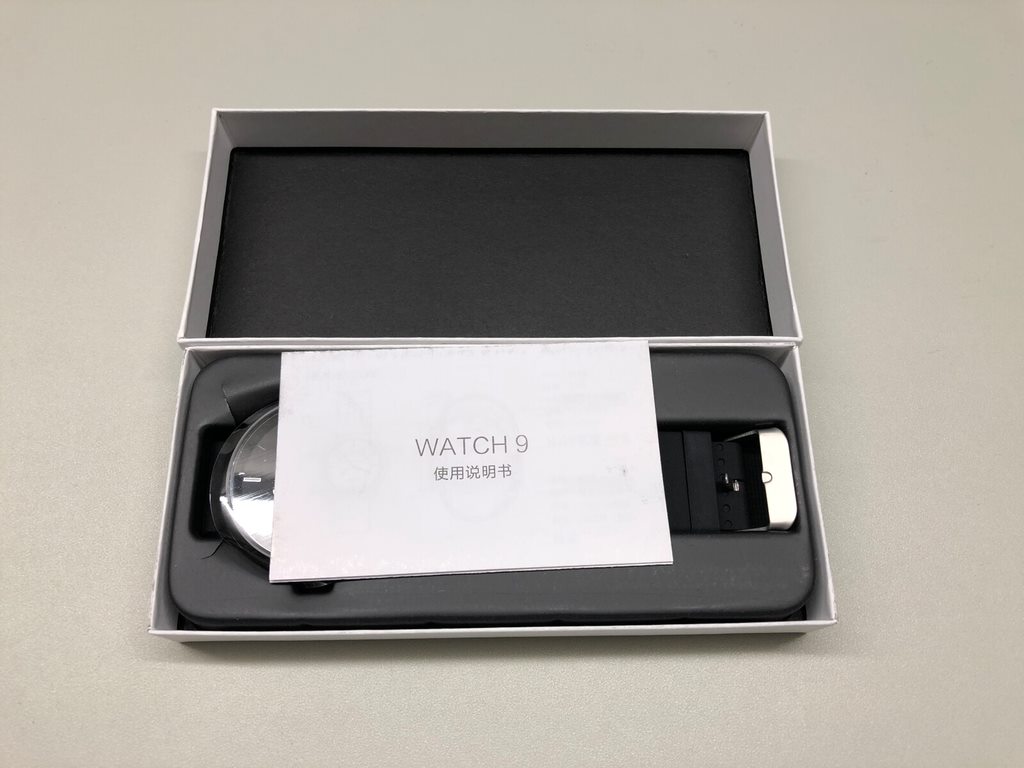
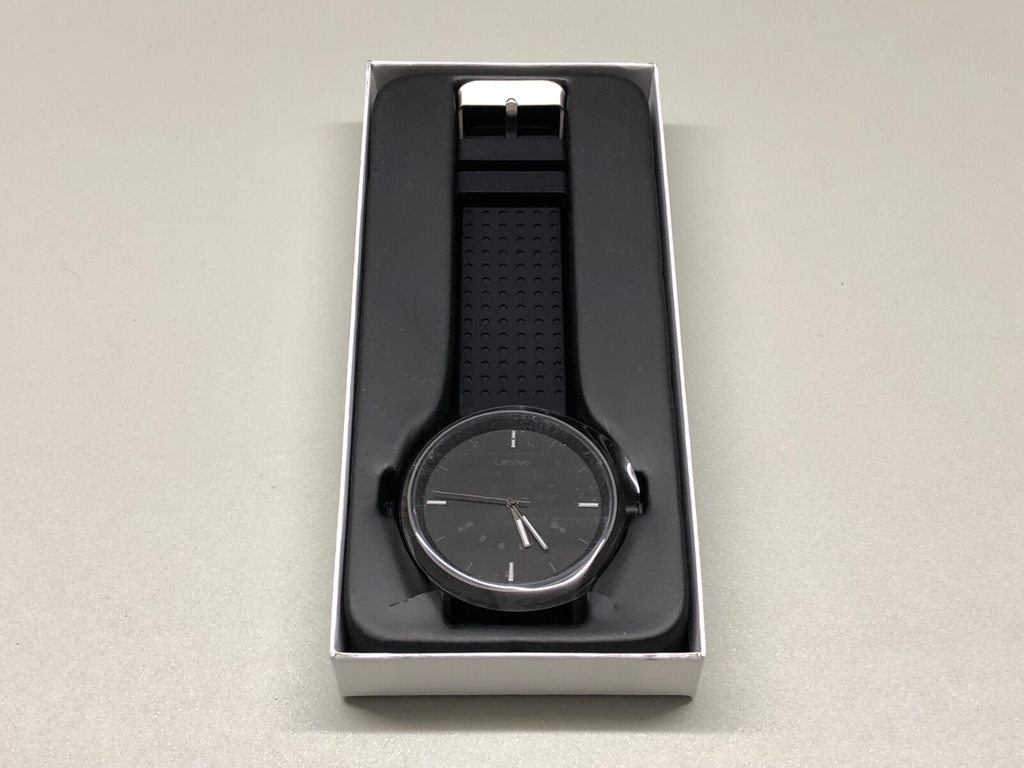
Remove the manual, and there’s the watch itself. It looked very similar to Lenovo’s official product images, which was a good sign.
The watch face and the aluminum back both had transparent protective films applied.
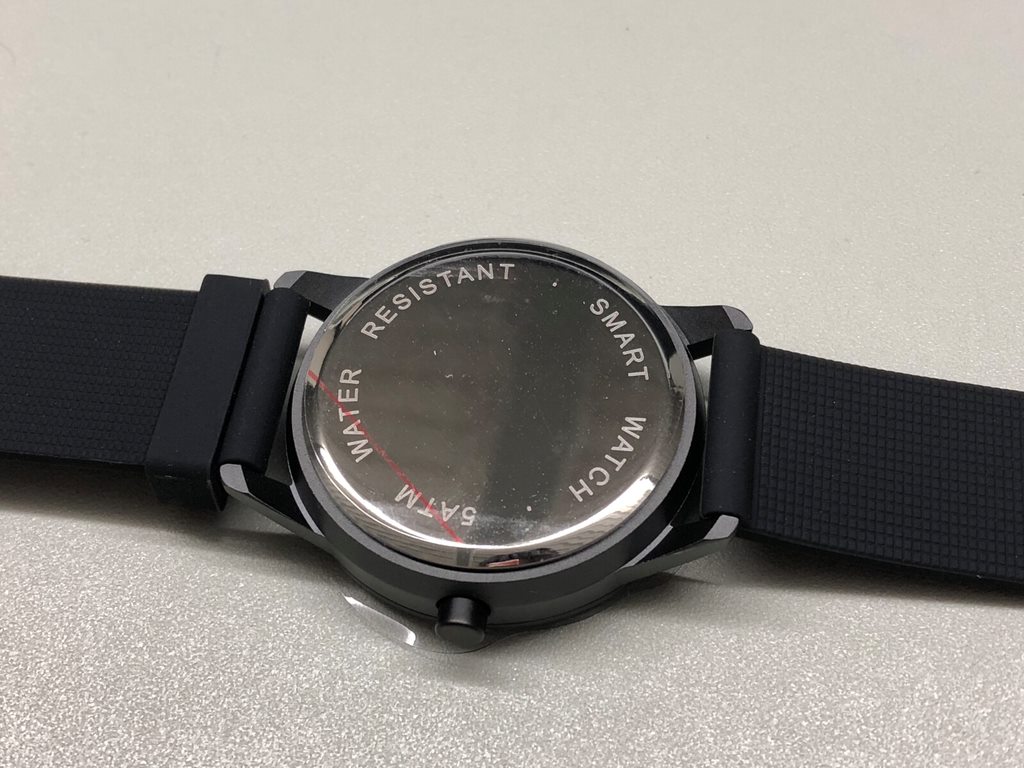
Here’s the back. It has a design that looks like it was thrown together in about two seconds with a “nobody looks at the back anyway” attitude. Not a fan.
(Then again, it’s a $20 watch, so I can’t really complain.)
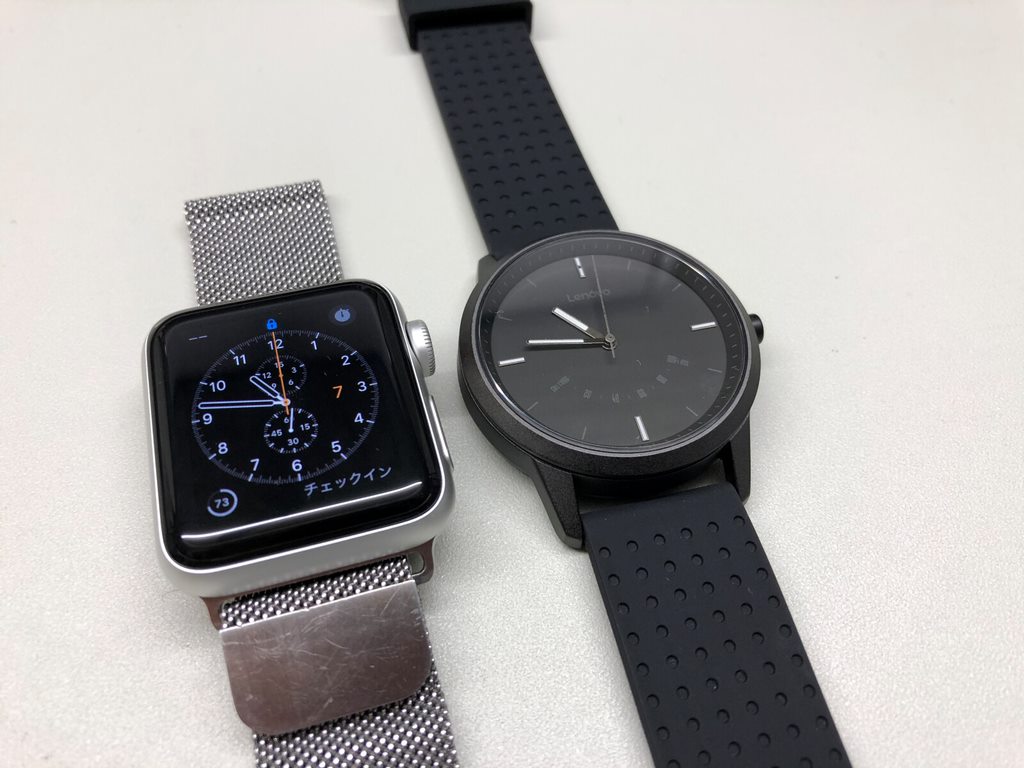
Here’s a size comparison with the Apple Watch Series 3 38mm (GPS+Cellular), which I switched to a stainless steel model this past April.
(Side note: I regret going cheap and getting the aluminum model before — the Ion-X glass durability was terrible and it got scratched up pretty badly.)
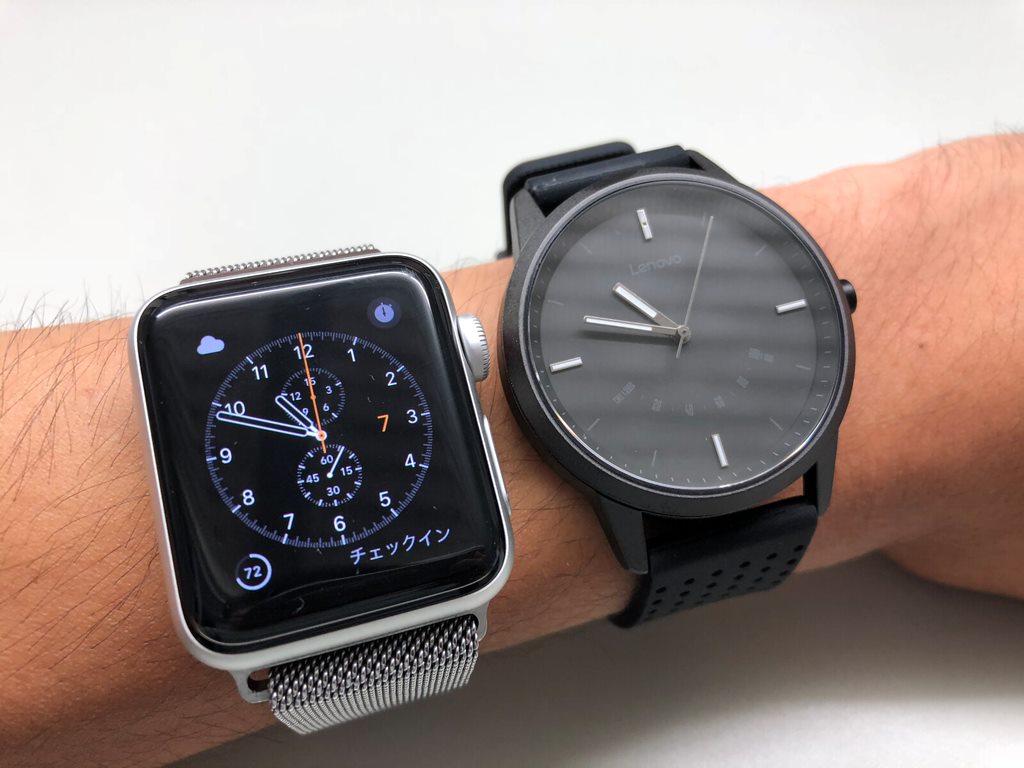
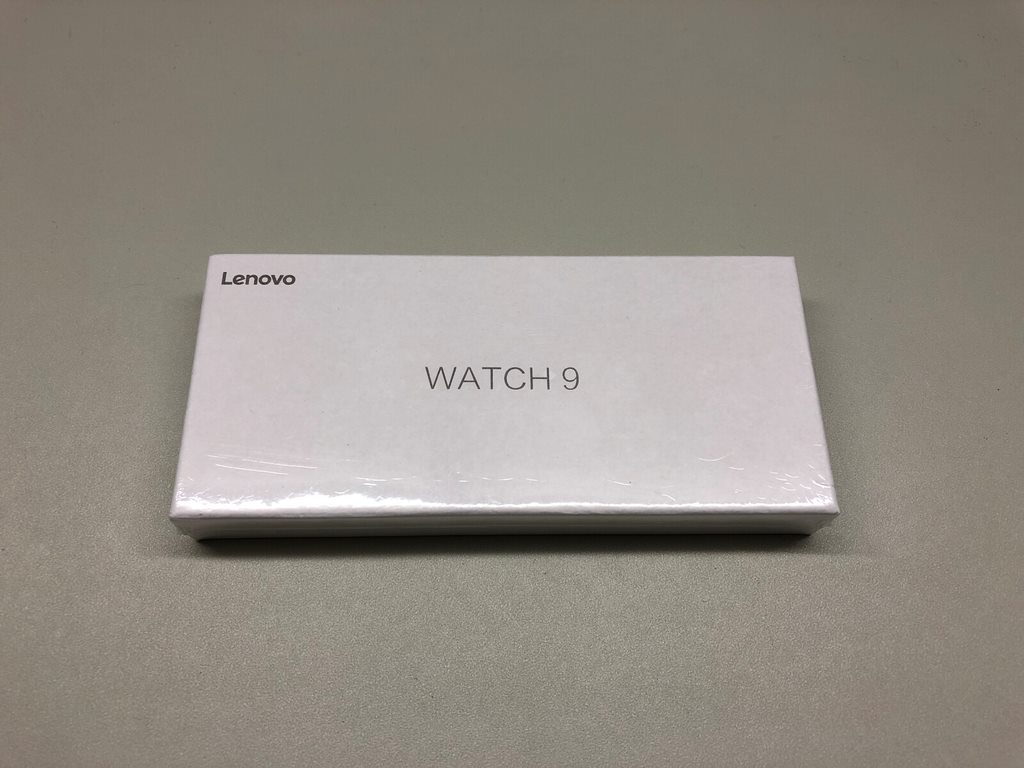
Here’s a wrist-on size comparison with the Apple Watch Series 3 38mm (GPS+Cellular).
They’re roughly the same size, but the Lenovo Watch 9 appears slightly larger to the naked eye.
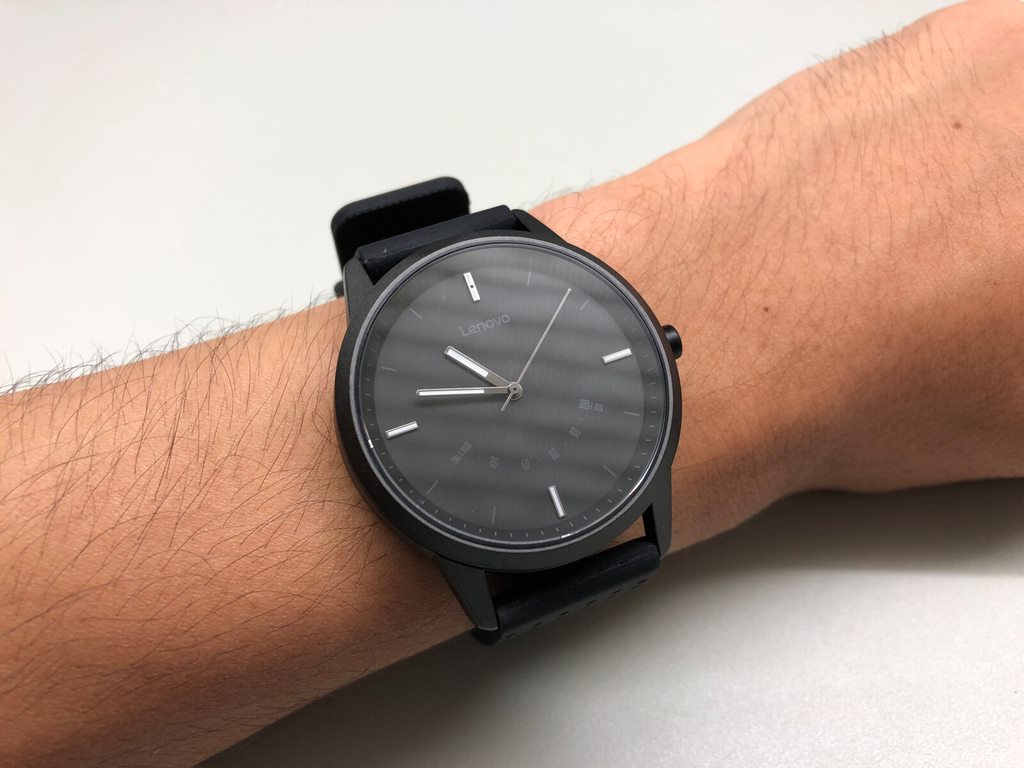
Worn on its own, it looks like this. The design is perfectly fine — nothing to be embarrassed about wearing in public.
As for the band, it’s made of silicone, so opinions will vary. I personally liked it.
That said, if you don’t like it, you can swap it out. (20mm band width)
*The band width is actually 18mm. I apologize for the error. Thanks to the commenter “watch9” for pointing this out.
That’s enough about the exterior. Let’s move on to the settings and app review.
The Lenovo Watch App
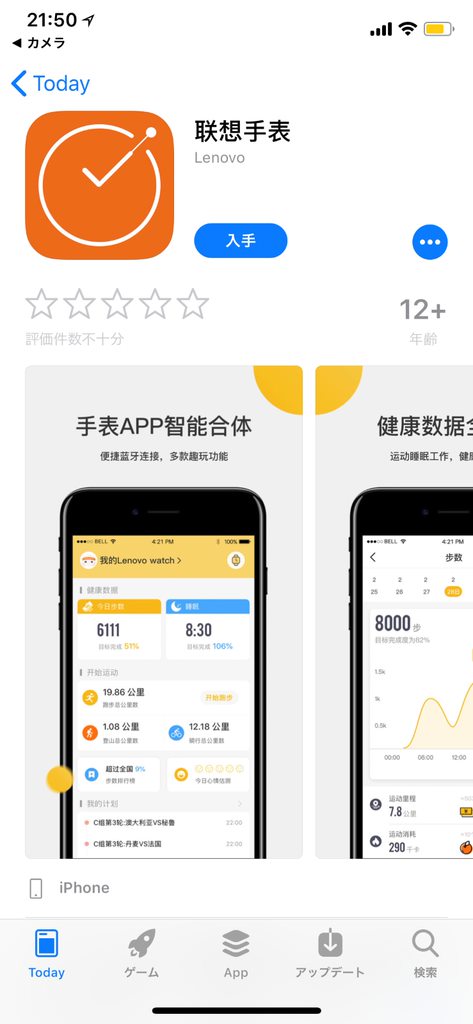
The app is available on both the App Store for iOS and Google Play for Android, and supports English.
When the watch arrives, the time is set to some arbitrary value, so you’ll need to use the app to correct it.
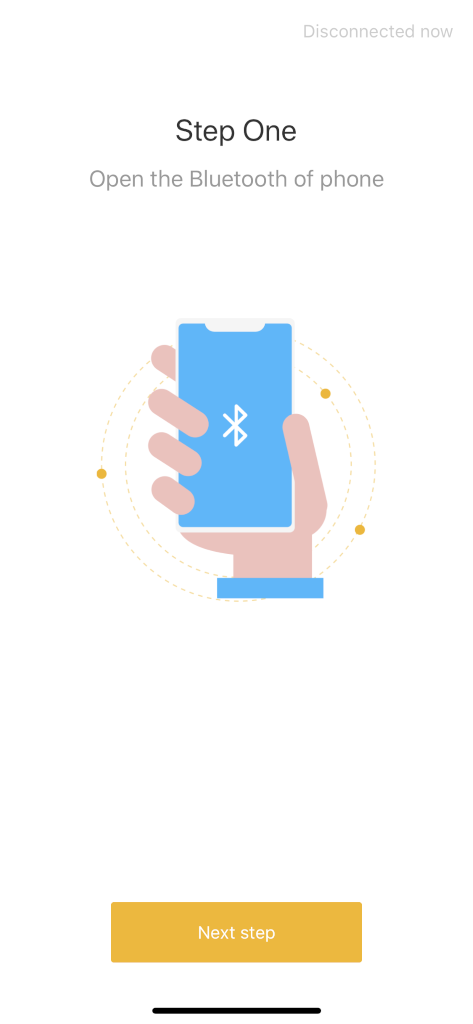
First, launch the Lenovo Watch app. A connection wizard will appear, so make sure Bluetooth is turned on and bring the Lenovo Watch 9 close to the phone you want to pair it with.
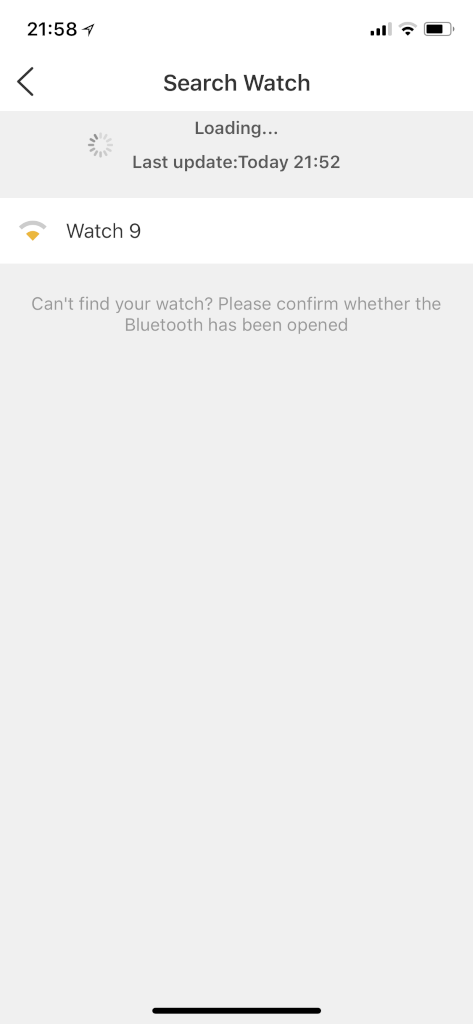
On the connection screen, “Watch 9” will appear. Tap it to connect.
Press the side button on the Lenovo Watch 9 once to confirm the device is present.
Finally, an iOS pairing confirmation will pop up. Tap “Pair” to proceed.
That completes the connection process.
Next, set the time. I had assumed the watch hands would automatically adjust, but it actually requires you to input the currently displayed time into the app first, and then it auto-corrects from there.
In other words, the Lenovo Watch 9 doesn’t know what time the hands are pointing to, so it asks you to tell it.
Once you enter the time shown on the dial into the app, it automatically syncs.
Once the time sync is complete, the app’s main menu is displayed.
Here you can see the main features.
The core functions include Steps, Sleep, Running, Cycling, Hiking, Reminder, Alarm, App Notification, and Remote Shutter.
There’s also a “Watch mode” that completely blocks all notifications.
I noticed the app had a “Heart rate” option and thought it could measure heart rate, but it actually uses the smartphone’s camera to take the reading by placing your finger over it.
Naturally, the smartwatch itself can’t measure heart rate. (It doesn’t have a heart rate sensor on the back, so that’s obvious.)
The “Third party” option lets you integrate with other apps. On iPhone, it supports Apple’s native Health app.
Since I normally use an Apple Watch, having Health integration means I can combine data from both the Apple Watch and Lenovo Watch 9 in one place, which sounded convenient. However, the only data that syncs with Health is step count. Sleep data, running data, and other metrics don’t transfer.
In “My Watch,” you can check the battery status of your Lenovo Watch 9 and change its name.
Regarding the battery, it uses a CR2032 coin cell. I’m not sure how many months it lasts, but it’s good that it uses a relatively common and easy-to-find coin cell battery.
Notifications
Since many people probably care about this, let me cover it here.
The supported notification apps are shown in the images above. For apps not on the list, you can check “App Notification All” to have the watch vibrate for all notifications.
The selective notification list includes apps like LINE and Twitter.
This might be an inherent limitation of hybrid smartwatches, but it’s disappointing that you can’t set different vibration patterns for different notifications.
For example, if you have both Twitter and LINE notifications enabled, you can’t tell which app the notification came from, which gets pretty annoying.
Sleep Tracking
I figured I’d try out the sleep tracking feature, but…
I strapped the watch on the day I bought it and went to bed. With the air conditioning on and a comfortable environment, I settled in for the night, and then…
“Tick… tick… tick… tick… tick……”
The ticking of the watch hands was so distracting that I couldn’t fall asleep and ended up taking it off.
The sleep tracking feature is basically unusable unless you’re the type of person who isn’t bothered by small sounds.
Visibility in the Dark
Even in complete darkness, you can tell the time thanks to luminous paint on the hands and dial.
Also, pressing the side button once lights up a red LED, so you won’t mistake the dial’s orientation.
By the way, pressing the side button repeatedly caused a cricket-like sound to play from the iPhone. (A “find my phone” feature for locating your device in a room, perhaps?)
Pros and Cons
Pros
Very reasonably priced.
Solid integration with iPhone.
Surprisingly good design for the price.
No annoying charging required.
Cons
Time setting is a bit cumbersome (if you input the wrong time, the sync will be off).
Health app integration only supports step count.
Can’t tell which app a notification came from (wish they’d add per-app vibration patterns).
The ticking of the second hand is surprisingly annoying.
Vibration is loud — quite audible in a quiet room.
![[2018] Installing Windows 7 Starter on a VAIO type P to Make It Usable Again](https://miyagadget.page/wp-content/uploads/2023/08/g3cFO3Vl.jpg)

Leave a Reply