
Have you ever had so many things to do that you didn’t know where to start?
I often find myself thinking “I need to do this” and “I can’t forget about that,” with everything jumbled up in my head.
So this time, I decided to use Claude Code to build my own Todo list app. It’s simple, but it’s practical enough to handle adding, completing, and deleting tasks, as well as managing priorities and deadlines.
Even without programming experience, you can build this by simply chatting with Claude Code. Let’s get started!
Recap of the Previous Article
In the previous article, we built a number guessing game with Claude Code.
You experienced how Claude Code can create a program just by telling it what to build.
This time, as an applied exercise, we’ll create a tool you can actually use in daily life. It has a few more features than last time, but don’t worry — Claude Code will guide you through it.
What We’re Building: A Simple Todo List App
Here are the specifications for the Todo list app we’ll create.
Basic Features
- Add Tasks: Register new tasks
- View Tasks: See all tasks in a list
- Complete Tasks: Mark tasks as completed
- Delete Tasks: Remove tasks you no longer need
Useful Features
- Priority Setting: Assign priority levels (high/medium/low) to tasks
- Deadline Setting: Set deadlines for tasks
- Today’s Tasks: Display only tasks due today
- Deadline Warning: Highlight tasks with approaching deadlines in red
It’s a simple command-line app, but it’s fully practical. Data is saved in a JSON file so you can check it anytime.
Creating the Project with Claude Code
Let’s get started with Claude Code right away.
First, create a project folder.
Creating the Project Folder
- Create a folder called “todo_app” on your Desktop
- Open PowerShell or Command Prompt
- Run the following commands
cd Desktop/todo_app
claude
Once Claude Code is running, give it the following instruction.

Instructions for Claude Code
Create a command-line Todo list app.

Features:
1. Add tasks (with title, priority, and deadline)
2. Display task list
3. Complete tasks
4. Delete tasks
5. Show only tasks due today
6. Highlight tasks with approaching deadlines in red

Save data in a JSON file.
Claude Code will receive these instructions and create the program for you.
In my environment, a file called `todo.py` was automatically created. Claude Code also provides a detailed explanation of the code, so even beginners can follow along with confidence.
Reviewing the Generated Code
The program Claude Code created had the following structure:
Key Components
- Task Class: Defines the data structure for tasks
- TodoManager: Manages adding, deleting, and completing tasks
- Menu Display: A user-friendly menu interface
- JSON Persistence: Automatically saves data to a tasks.json file
What I found particularly useful was the deadline warning feature. Tasks due within 3 days are automatically displayed in red, so you never forget about them.
Running the App
Let’s actually try using the Todo list we built.
How to Launch
python todo.pyRunning this command displays the menu screen.
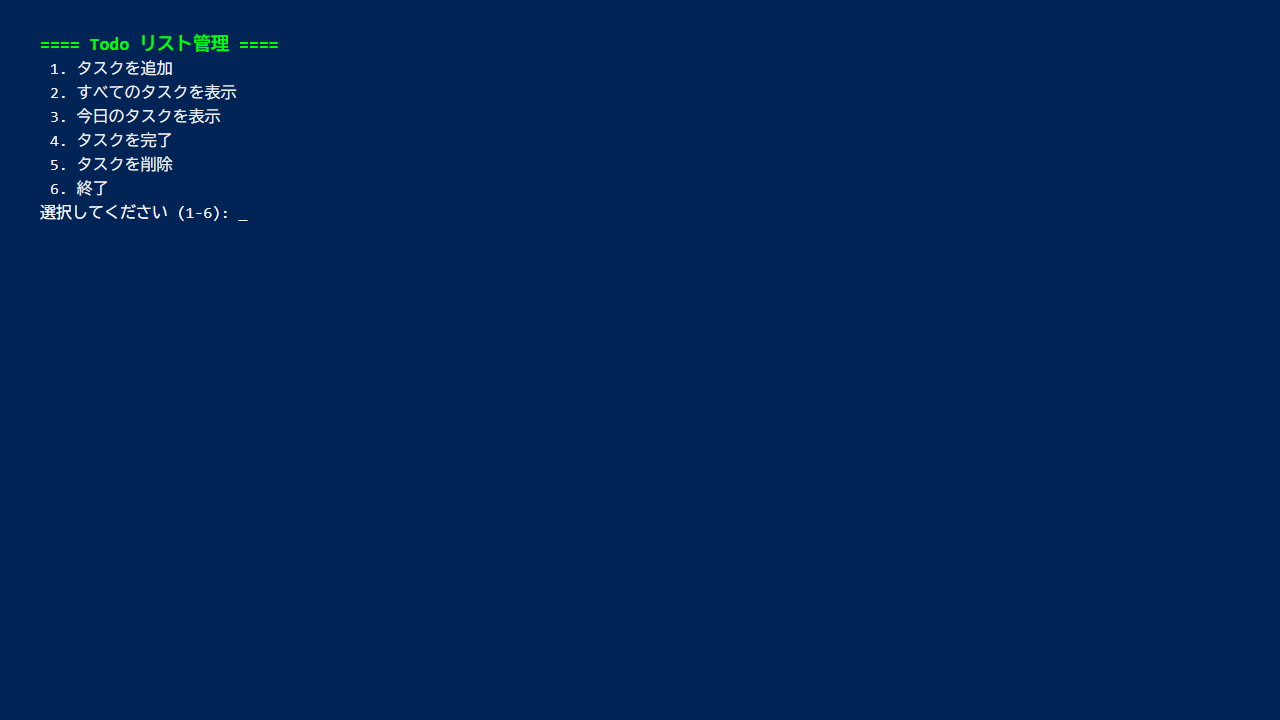
You can perform various operations by selecting a number from the menu.
Adding a Task
Select “1” from the menu to open the task addition screen.
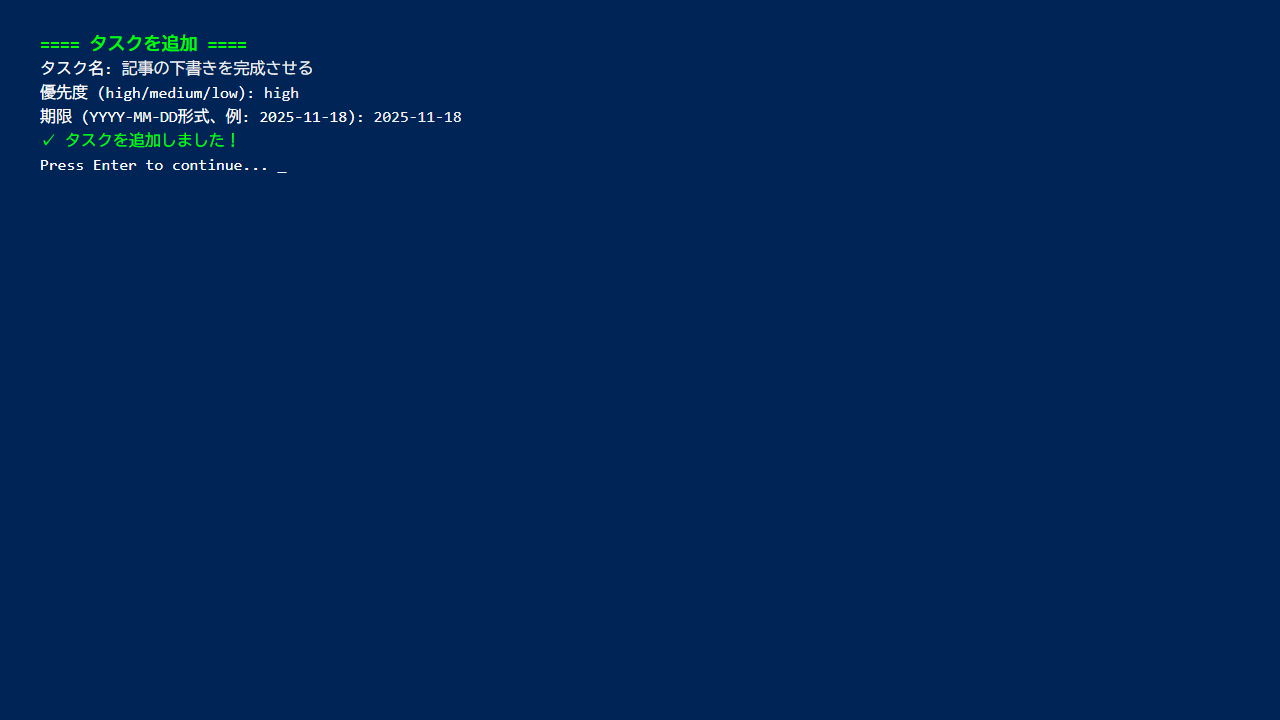
Enter the task title, priority (high/medium/low), and deadline (YYYY-MM-DD format).
For example:
Task name: Finish the blog post draft
Priority: high
Deadline: 2025-11-18
Once you finish entering the details, the task is registered.
Viewing the Task List
Select “2” from the menu to display all tasks.
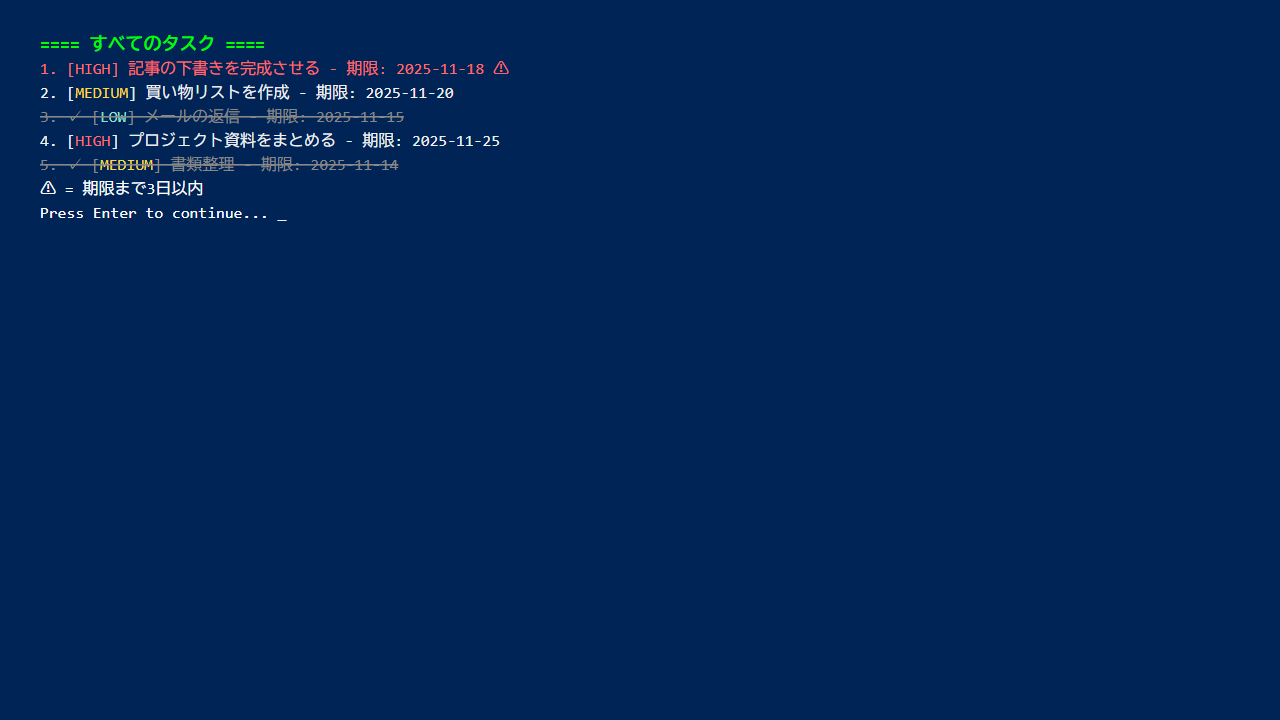
Completed tasks are marked with a checkmark and shown with strikethrough text.
Tasks due within 3 days are highlighted in red as a warning, so you won’t miss them.
Customizing for Better Task Management
The basic features were complete, but I wanted to make it a bit more user-friendly.
So I asked Claude Code for some additional improvements.
Improvement Request
Add a feature to display only tasks due today.
Also, show a message when there are no tasks.
Claude Code responded immediately.
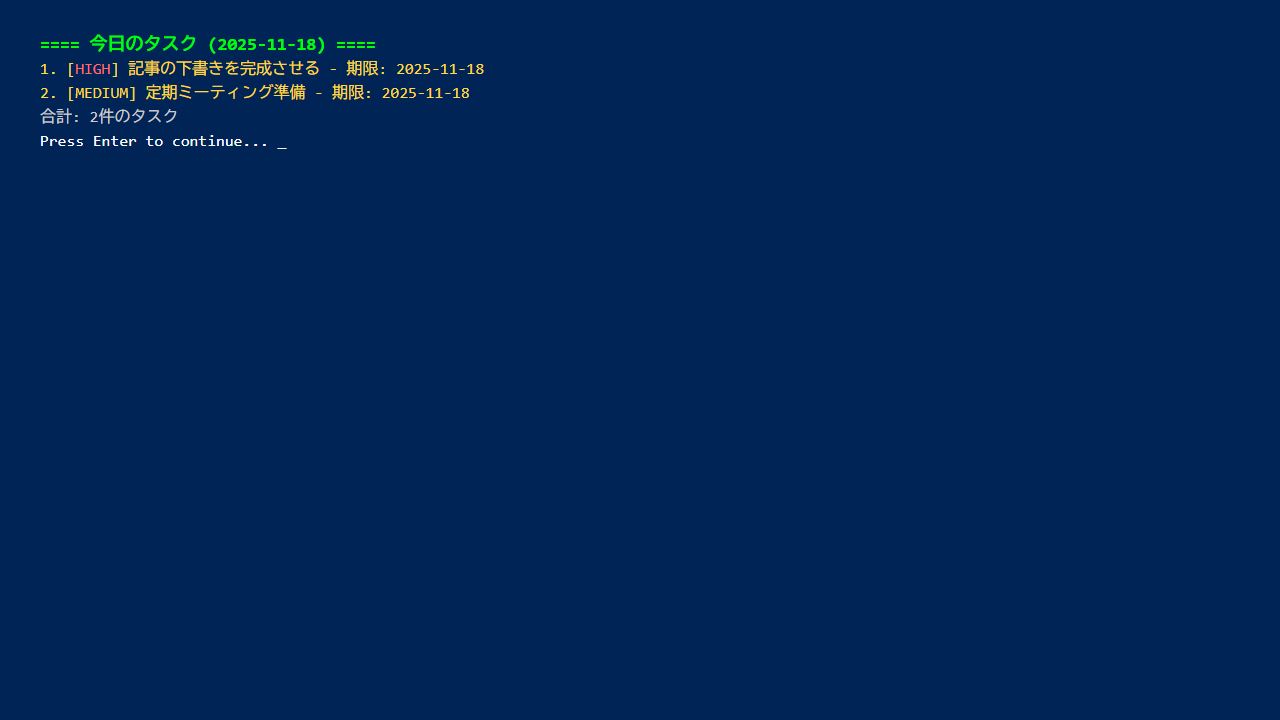
With the “Today’s Tasks” feature added, I can now check only what needs to be done today at the start of each workday. This is genuinely useful.
Checking the Data Storage Location
The Todo list data is saved in a file called `tasks.json` inside the project folder.
If you back up this file, you can transfer your data even when you get a new computer.
Since it’s a JSON file, you can also edit it directly with a text editor (just be careful not to break the formatting).
Stumbling Points and Solutions
I ran into a few snags while building this.
Date Input Format
At first, I entered the deadline as “2025/11/18” and got an error.
The correct format is “2025-11-18” (hyphen-separated).
When I told Claude Code “I’m getting errors with date input,” it added input examples to the menu. Being able to make these small adjustments through conversation is one of Claude Code’s strengths.
Priority Input Mistakes
Priority must be entered as “high,” “medium,” or “low,” but I initially typed it in Japanese by mistake.
When I mentioned this to Claude Code, it added input validation that prompts you to re-enter if the input is incorrect.
The Joy of Building Your Own Tools
Building my own Todo list with Claude Code reminded me of how fun programming can be.
There are plenty of commercial task management apps out there, but the biggest advantage of building your own is the freedom to customize it however you want.
For example, I could add features like these in the future:
- Tag tasks for categorization
- Display statistics on completed tasks
- Auto-generate weekly reports
- Add reminder notifications
With Claude Code, implementing these features is a breeze.
Conclusion
In this article, we used Claude Code to create a simple Todo list app.
Key Takeaways
- Just by giving instructions to Claude Code, you can build practical tools
- We implemented all the essential task management features (add, complete, delete, deadline management)
- You can add and refine features through conversation
- Since it’s your own custom tool, you can customize it freely
Next time, I’d like to take it a step further and build a household budget app with data visualization.
Even if you’ve never programmed before, Claude Code makes it this easy to build tools. Give it a try!


Leave a Reply