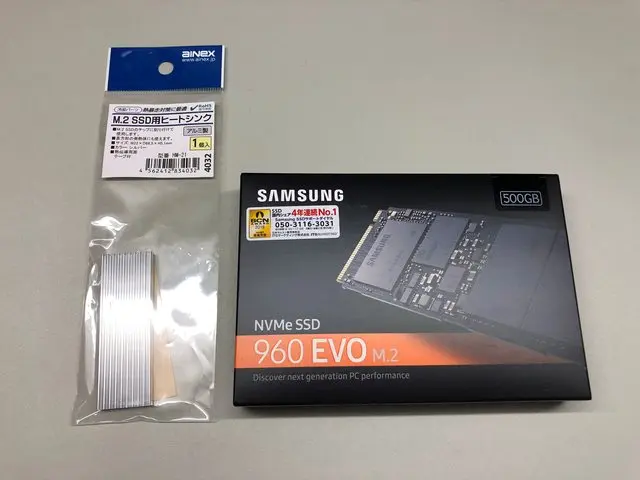
This article covers how I installed an NVMe SSD (Samsung 960EVO) on a PC that doesn’t natively support NVMe, and the speed improvements that came with it.
My main workstation had a SATA-connected Samsung PM851 M.2 SSD installed.
Despite being 4 years old, there were no issues with its lifespan or total write volume, and I had been using it comfortably. However, since I frequently work with large files, I was starting to feel the limitations of its write speed (365MB/s).
On top of that, with Windows 10 installed along with Adobe software and other storage-heavy applications all living on the PM851, the free space on the SSD was critically low — which was another concern.
So I decided to add a new SSD, use it as my primary drive, and repurpose the PM851 as a secondary data storage drive.
((Even if this PC dies, I can reuse the SSD in the next build…))
What I Bought
・Samsung 960EVO 500GB
I managed to pick it up for 15,907 yen during an Amazon Prime Sale. Perhaps the price dropped because the 970EVO had just launched, making this a previous-gen model?
Either way, the regular price never dipped below 19,000 yen, so I got an incredible deal.
The discounted stock was gone by the next day, so it must have been quite popular.
Arrival
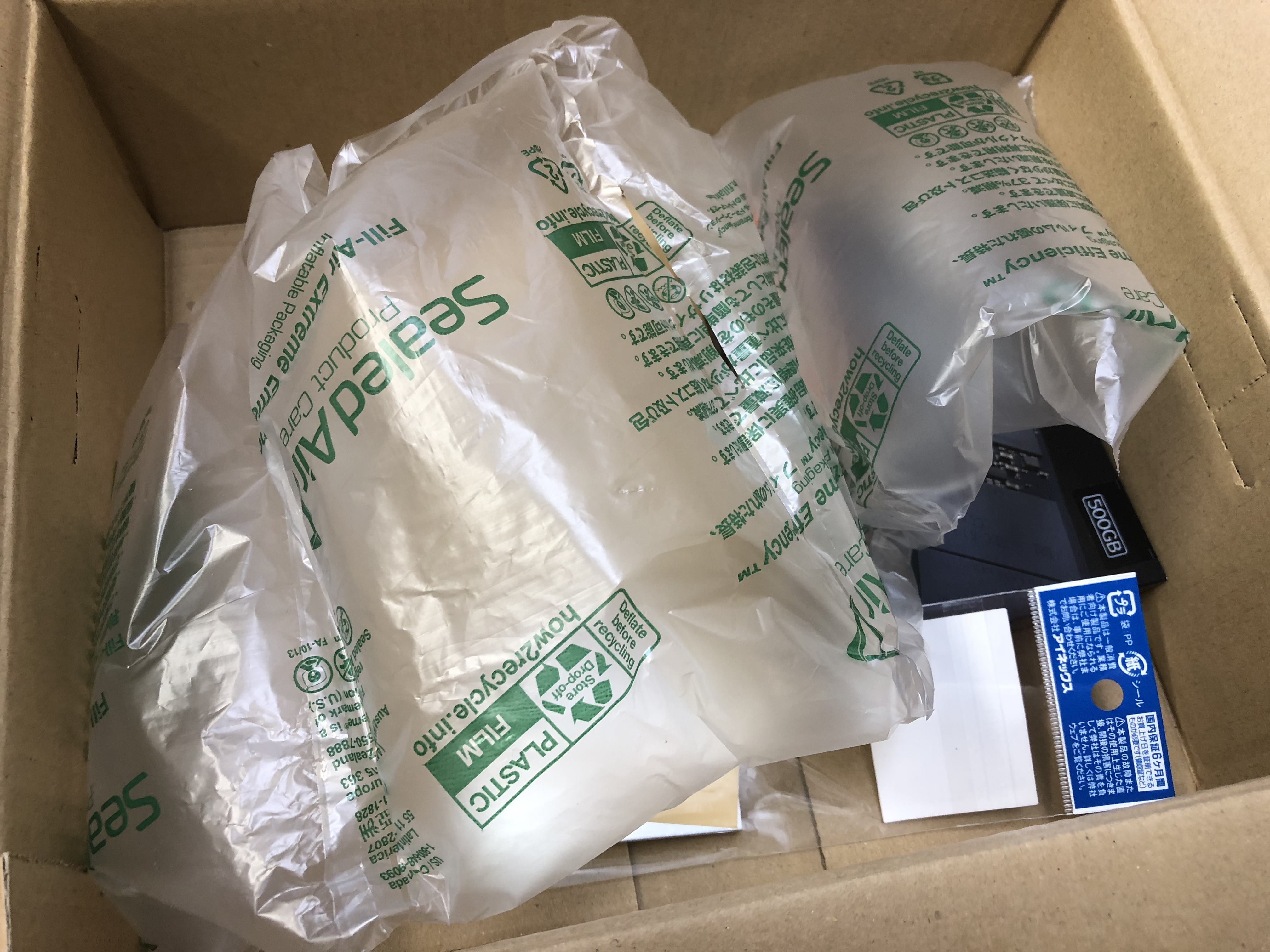
The packaging was absolutely terrible…. If this had been an HDD, I would have returned it immediately….
*I’ve noticed recently that using express shipping tends to result in this kind of careless packaging. If you’re ordering precision devices like HDDs, I recommend choosing standard shipping even if you have a Prime membership.
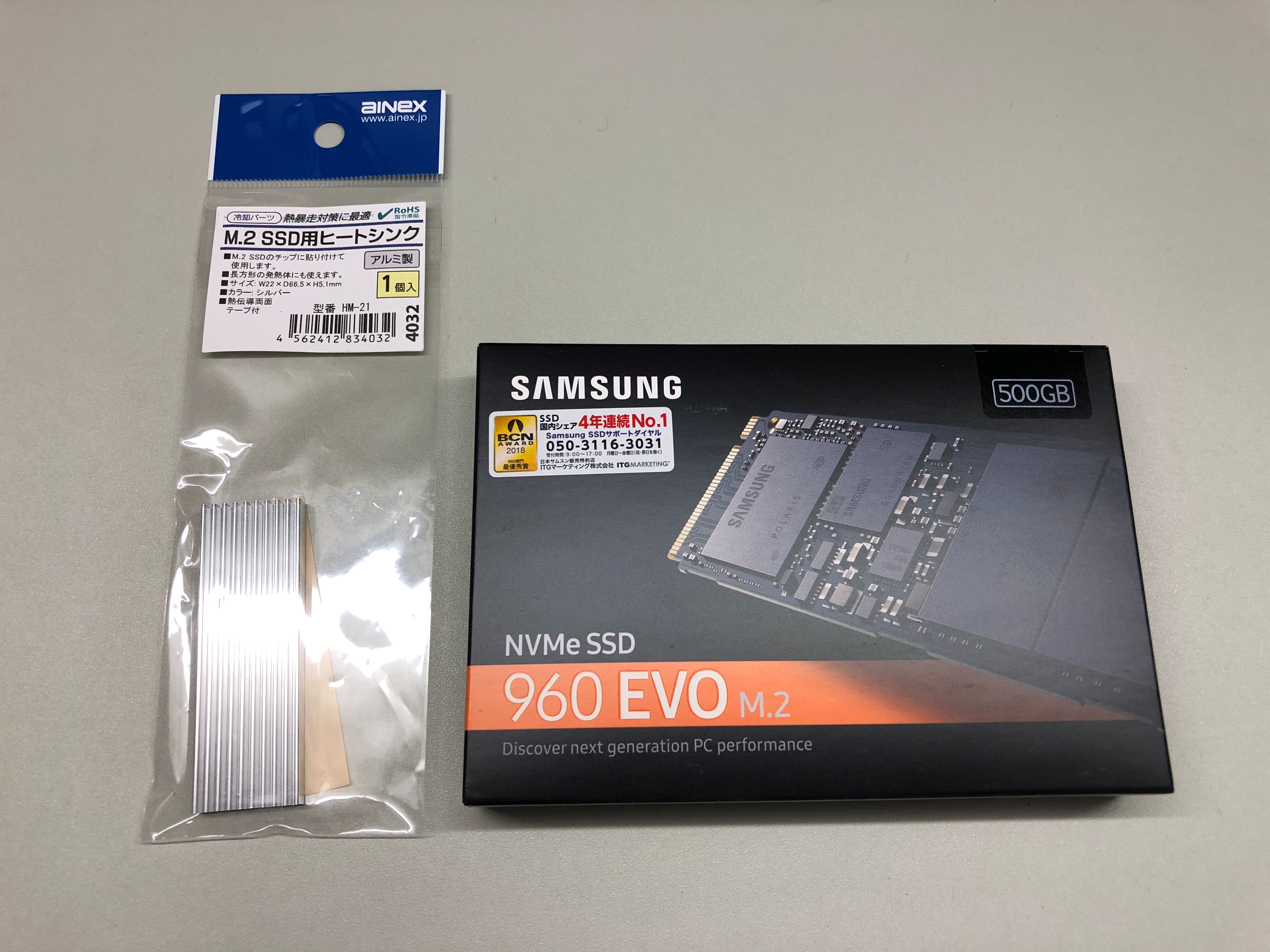
Fortunately, the retail box itself had no damage.
Samsung, after all — they’ve held the #1 SSD market share for 4 consecutive years.
Installation and Setup
First, I carefully peeled off the label sticker and attached a heatsink. (This probably voids the warranty at this point.)
One tip for removing the sticker cleanly: use a paperclip and work from the center outward.
If you peel from the edge, the anti-tamper cuts (similar to discount stickers at grocery stores) will tear the label apart, so be careful.
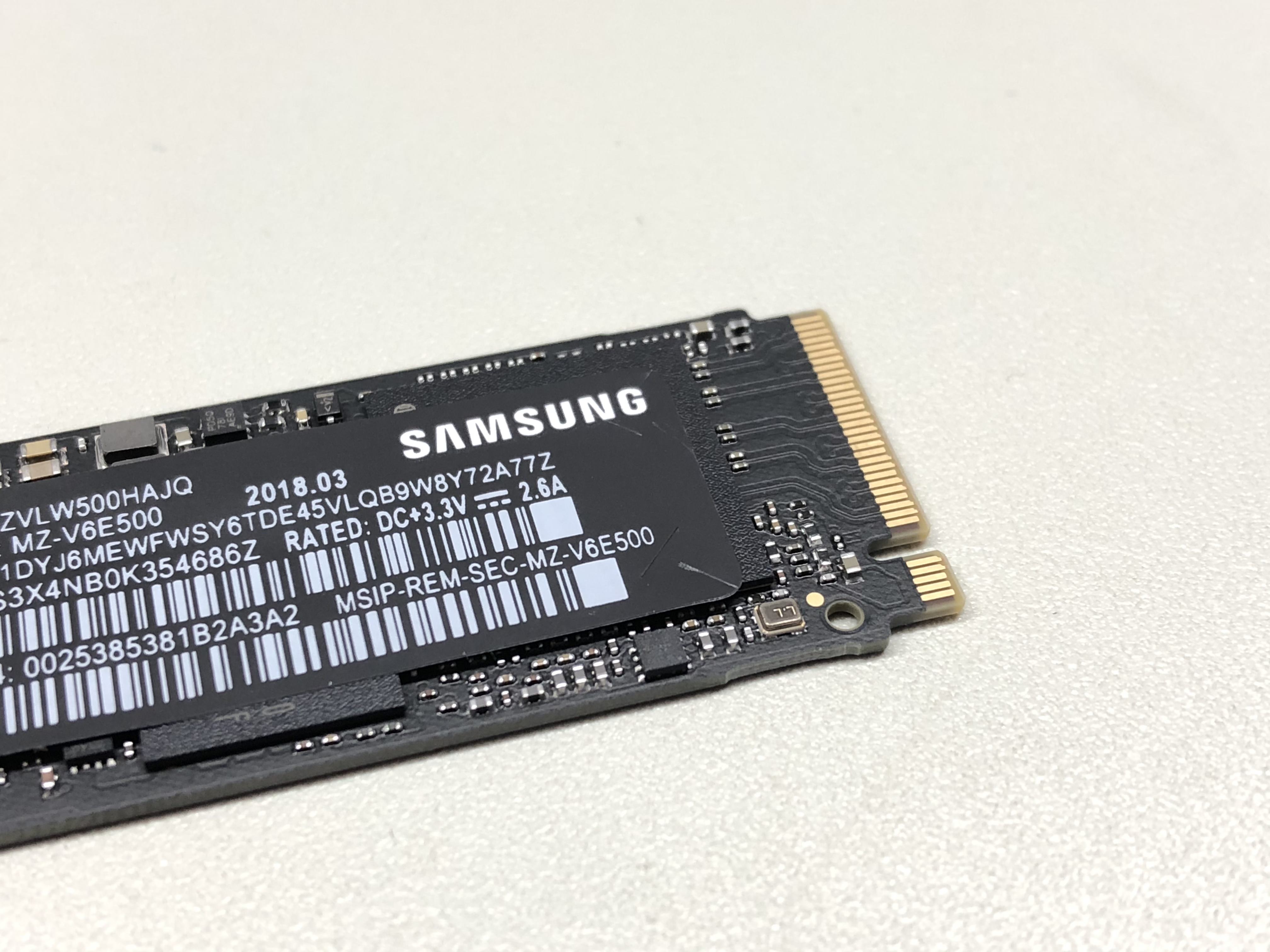
↑Anti-tamper cuts on the sticker.
I stored the removed sticker together with the PM851’s sticker for safekeeping.
I had previously purchased a PCIe adapter card that supports two M.2 SSDs — one SATA slot on top and one PCIe slot on the bottom. I mounted the 960EVO in the bottom slot and inserted it into a PCIe x4 (Gen3) lane.
Naturally, my aging Sandy Bridge family (Sandy Bridge-EP) PC does not support booting from an NVMe SSD via PCIe.
((Booting from a SAS card on PCIe was possible, so I had hoped NVMe boot might work too — but no luck.))
So a small workaround was needed.
The solution: using the Clover EFI bootloader (well-known in the Hackintosh community) as an intermediary boot loader.
Here’s a quick overview:
Normal Boot
BIOS searches USB/HDD/SSD/LAN for boot devices → Windows Boot Manager launches → Windows 10 starts
This Method
BIOS searches USB/HDD/SSD/LAN for boot devices → Clover EFI bootloader launches → Clover finds and boots the NVMe SSD → Windows 10 starts
That’s essentially how it works.
For detailed instructions on this method, check out the link below.
Huge thanks to the author for documenting this process.
Attempting to Boot from an NVMe-Unsupported Motherboard Without Hardware Mods
((I actually tried GRUB first, but it didn’t work. While searching for alternatives in desperation, I stumbled upon this article. I had completely forgotten Clover existed lol))
With this, I successfully got Windows 10 installed and running.
Impressions of Using the 960EVO
Copying large files and transferring lots of small files became significantly faster. Plus, with the PM851 now freed up as a dedicated 500GB data drive, things became much more convenient overall.
That said, the heat output is pretty intense. I’m planning to buy a fan once I have some extra budget.
((Planning to cool both M.2 SSDs with a single fan.))
Final Thoughts
My main workstation runs a Xeon E5-2690, which gives it roughly the same PassMark score as a Ryzen 7 1700. (Terrible power efficiency, though.)
So with upgrades like this — modernizing the RAM and GPU — I’m hoping to squeeze at least another 2 years out of this machine….
((Next build will be a custom PC. Probably won’t go with Xeon again. Need to save up….))
Recommended Items
NVMe SSD (PCIe Gen3/Gen4)
Upgrade your PC with an NVMe SSD for dramatic speed improvements.
M.2 NVMe to PCIe Adapter Card
Required adapter for installing NVMe SSDs on older motherboards.


Leave a Reply