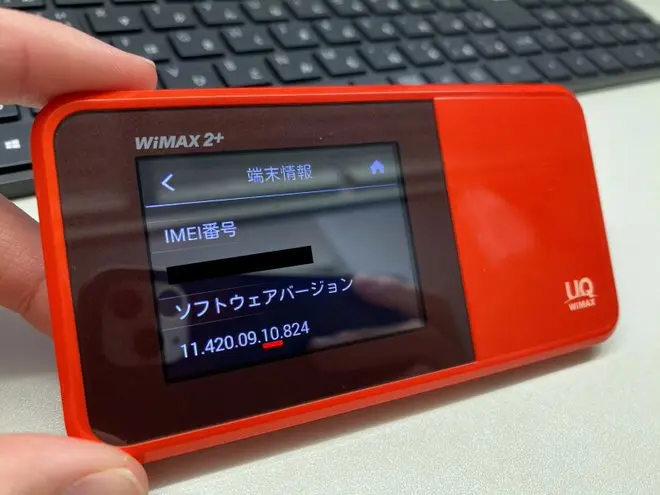
In this article, I’ll walk you through how to downgrade the au W03 firmware so it can be used with Rakuten Mobile.
If you’ve inserted a third-party SIM into your W03 but accidentally updated the firmware and lost Band 3 support, this guide should help you out.
By the way, the same procedure can also be used to downgrade the W04 — you just need to swap out the firmware file.
1. What You’ll Need
– W03 unit
– A PC with a LAN port
– W03 cradle
– LAN cable
– microUSB cable and charger
2. Required Files
DownGraderW04_2.010_forW03 (https://egg.5ch.net/test/read.cgi/android/1543287511/107-108)
* For the W04, use this version (DownGraderW04_2.010) -> https://egg.5ch.net/test/read.cgi/android/1520003919/313
* For the W05, I created a modified version of “DownGraderW04” with the firmware URL changed.
In theory, this should allow downgrading, but since I don’t own a W05, the functionality is unverified and I take no responsibility for any issues.
If you’re willing to be a guinea pig, please give it a try and let me know in the comments whether the downgrade worked.
-> DownGraderW04_2.010_forW05.zip
3. Installation Steps
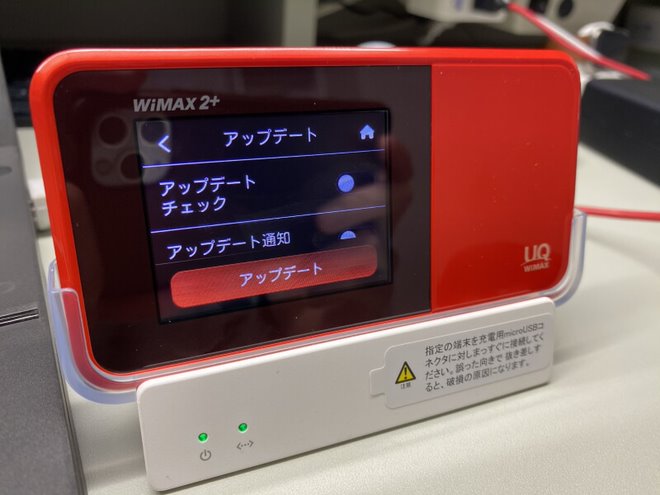
On the W03, disable “Update Check,” “Update Notification Settings,” and “Auto Update.”
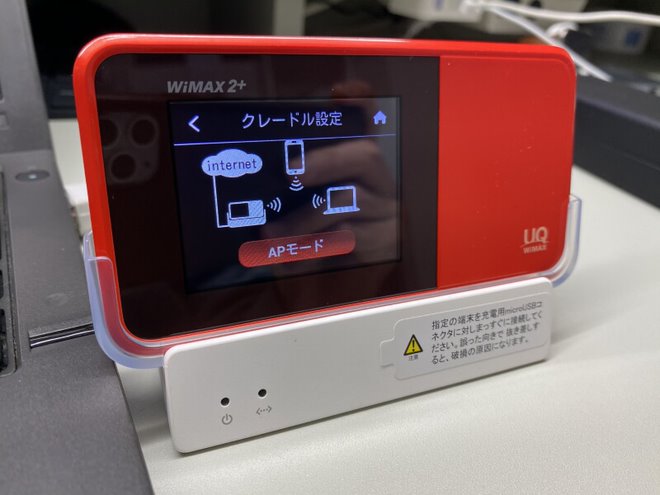
Go to [Settings] -> [Cradle Settings] -> [AP Mode] and switch to AP mode. Don’t connect the PC just yet.
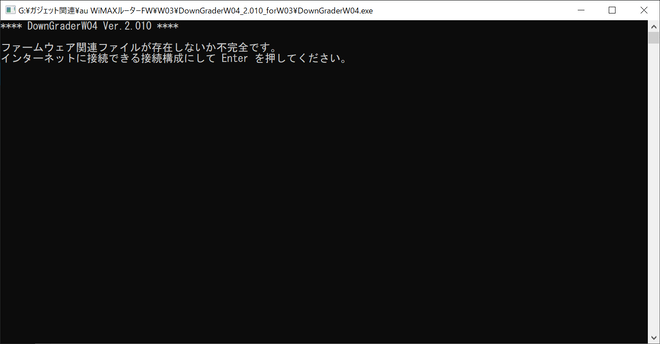
Next, extract DownGraderW04_2.010_forW03.zip on your PC and launch “DownGraderW04.exe.”
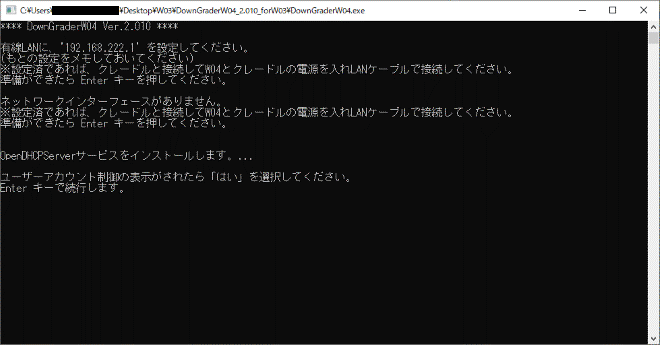
A CUI window like the one below will appear — press “Enter” to proceed.
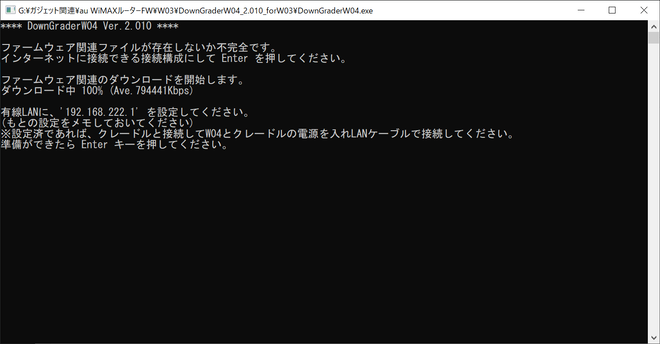
The download will begin. When the message “Press Enter when ready” appears, move on to the next step.
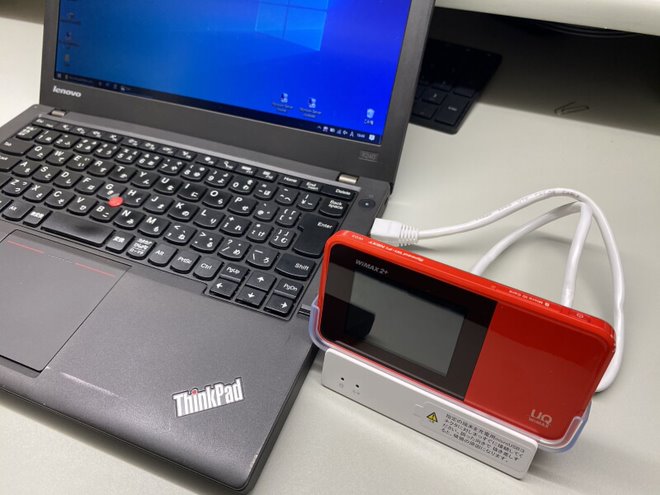
Now connect the W03 to the cradle, then connect the cradle to your PC via LAN cable.
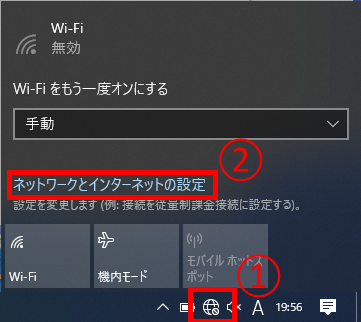
Once connected, click the network icon in the taskbar and select “Network and Internet Settings.”
The UWP Windows Settings page will open. Click “Change adapter options.”
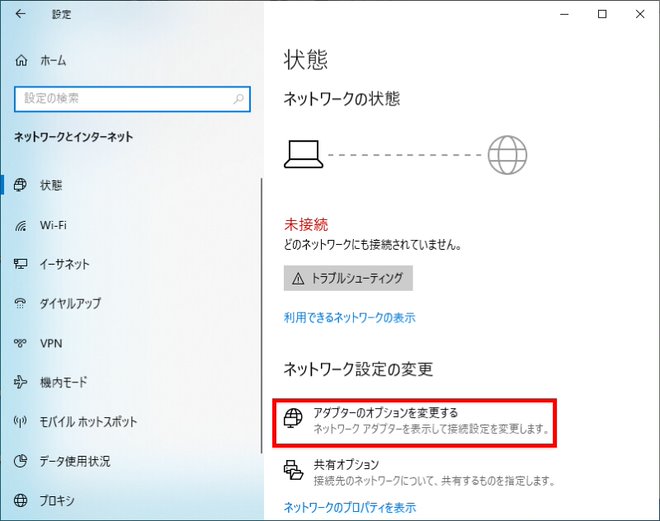
* If you’re using the Control Panel, navigate to “Network and Internet” -> “Network and Sharing Center” -> “Change adapter settings.”
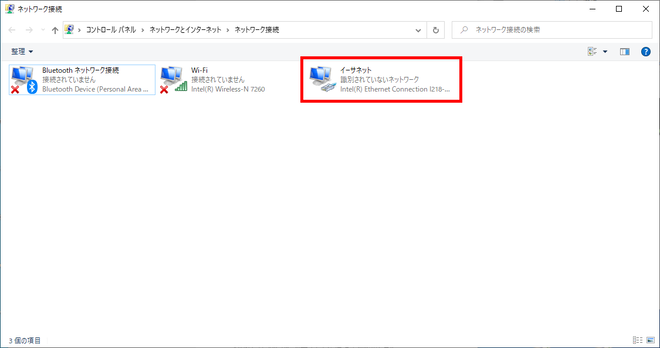
A window like this will open. Right-click the item labeled “Unidentified network” and select “Properties.”
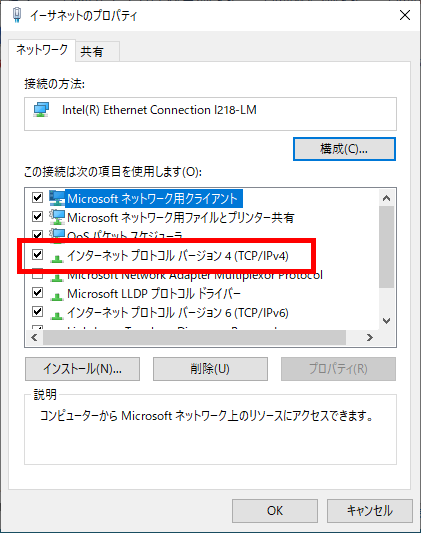
In the Properties dialog, select “Internet Protocol Version 4 (TCP/IPv4)” and click “Properties.”
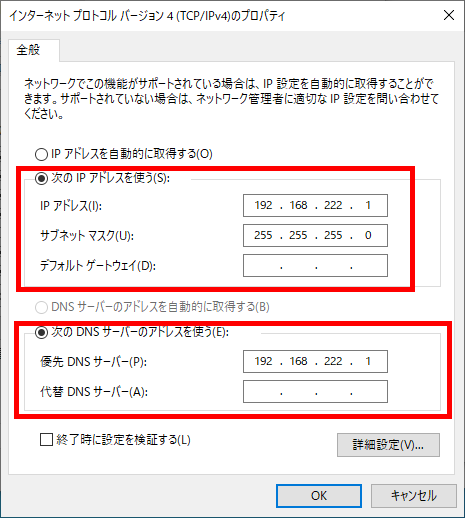
Select “Use the following IP address” and “Use the following DNS server addresses,” then enter the values shown in the image above.
Once you’ve entered the values, click “OK” to finish.
Go back to the CUI window and press “Enter.”
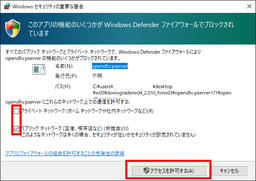
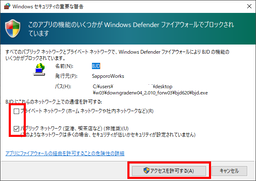
* At this point, Windows Firewall may trigger a prompt. Check both boxes and click “Allow access.”
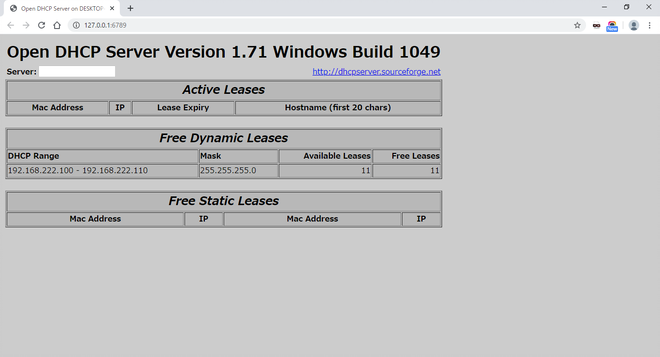
After a short wait, a screen like the one below will appear. If “Free Dynamic Leases” shows an entry like this, the PC side is ready.
With the W03 still connected to the cradle, manually check for updates. An older firmware version will appear — tap “Update.”
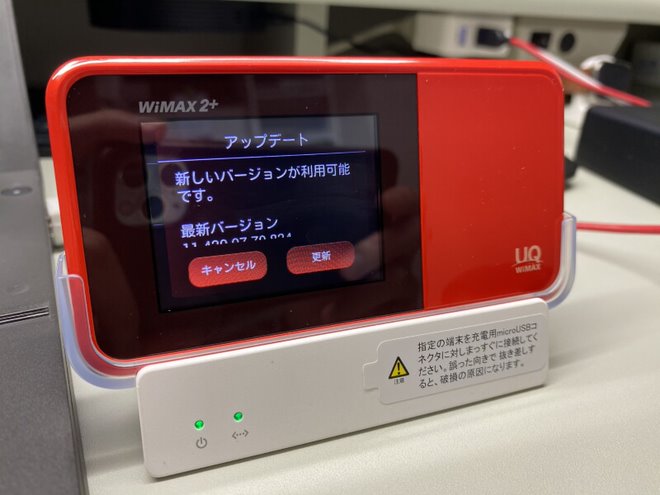
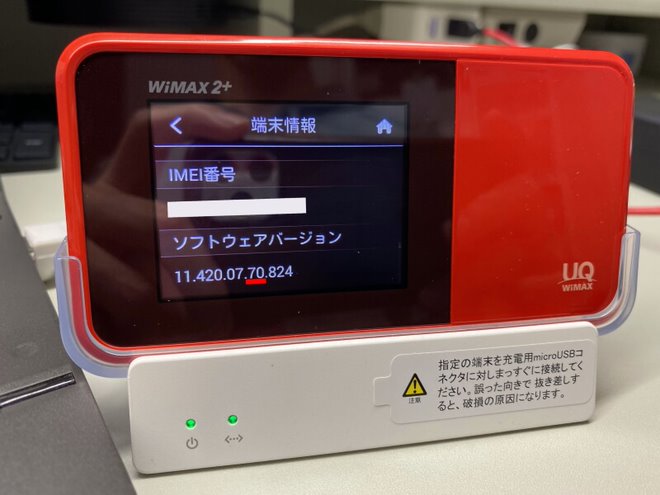
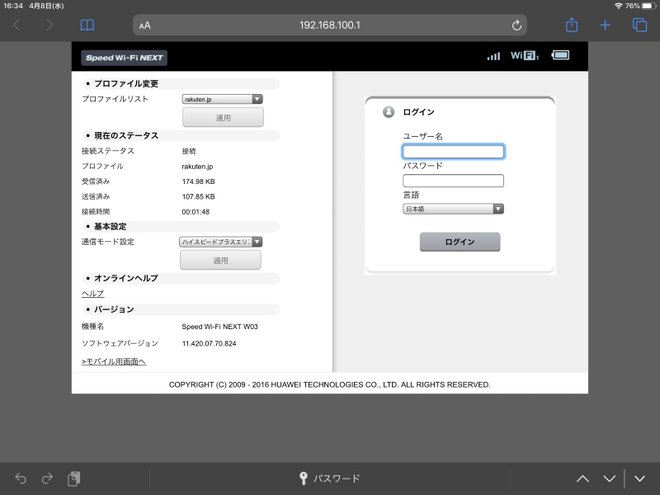
After rebooting a few times, the device will start up normally. Check the version in the device info — if it matches the version shown below, the downgrade was successful.
Wrapping Up
That’s it for the procedure. The W03 is an incredibly affordable device that supports both Band 3 and Band 18, making it a very practical router for Rakuten’s MNO network.
Why not give it a try and start using your downgraded W03?

Leave a Reply